
Suppose you want to see a running balance of items that you purchase so that you don't exceed your spending limits. Use a running balance to watch values of items in cells add up as you enter new items and values over time. To calculate a running balance, use the following procedure.
Note
A running balance differs from a running total (also called a running count), in which you watch the number of items in a worksheet add up as you enter new items. For more information, see Calculate a running total in Excel.
Set up a worksheet like the following example.
Example data:A B C 1 Deposits Withdrawals Balance 2 1000 625 =SUM(A2-B2) 3 1245 740 =SUM(C2,A3-B3) Click anywhere outside cell C3 to see the calculated total.
To maintain the running balance, add a row for each new entry by doing the following steps:
Type the amounts of your deposits and withdrawals into the empty rows directly below the existing data.
For example, if you're using the preceding example, type the deposits into A4, A5, and so on, and type the withdrawals into B4, B5, and so on.Extend the running balance formula into the new rows by selecting the last cell in the balance column and then double-clicking the fill handle.
For example, if you're using the preceding example, select cell C3 and then double-click its fill handle to extend the formula into all new rows that contain deposit and withdrawal values.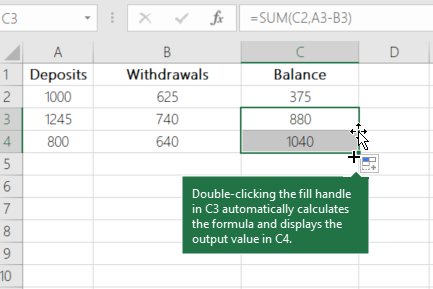
Need more help?
You can always ask an expert in the Excel Tech Community or get support in Communities.