

You can divide the contents of a cell and distribute the elements into multiple adjacent cells. For example, if your worksheet contains a column Full Name, you can split that column into two columns—a First Name column and Last Name column.
Tip
- For an alternative method of distributing text across columns, see the article, Split text into different columns with functions.
- You can combine cells with the CONCAT function or the CONCATENATE function.
Note
A range containing a column that you want to split can include any number of rows, but it can include no more than one column. Keep enough blank columns to the right of the selected column to prevent data in any adjacent columns from being overwritten by the data that is to be distributed. If necessary, insert empty columns to contain each of the constituent parts of the distributed data.
Select the cell, range, or entire column that contains the text values that you want to split.
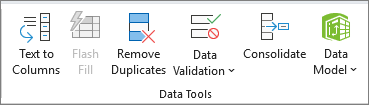
On the Data tab, in the Data Tools group, select Text to Columns.
Follow the instructions in the Convert Text to Columns Wizard to specify how you want to divide the text into separate columns.
Note
For help with completing all the steps of the wizard, see the article, Split text into different columns with the Convert Text to Columns Wizard, or select Help.
 in the Convert to Text Columns Wizard.
Need more help?
You can always ask an expert in the Excel Tech Community or get support in Communities.
See Also
How to avoid broken formulas in Excel
Detect formula errors in Excel