

This article explains how to get your vCard (.vcf file) into CSV format so you can import your contacts into Outlook.
Important
Make sure you've exported all of your contacts from iCloud. The most common issue is you might export only one contact from iCloud when you intended to export all of them. For instructions on exporting all of your contacts from iCloud, go to Export your iCloud contacts to a vCard (.vcf) file.
To import contacts in a vCard file to Outlook on a PC, you need to convert them from a .vcf file format to a .csv file format. This involves importing them to Windows, and then exporting them to the CSV file.
To convert a .vcf file to .csv, import them to Windows and then export them to a .csv file. Here's how to do that:
- On your PC, open File Explorer (or Windows Explorer if you are using an earlier version of Windows).
- Go to your Contacts folder:
C:\Users\<username>\Contacts - At the top of the page, choose Import.

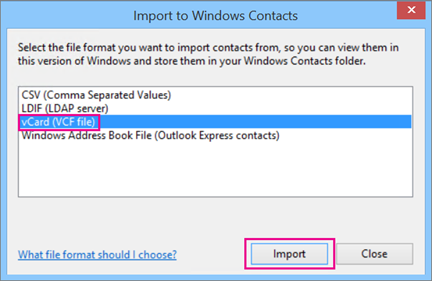
- Choose vCard (VCF file) > Import.
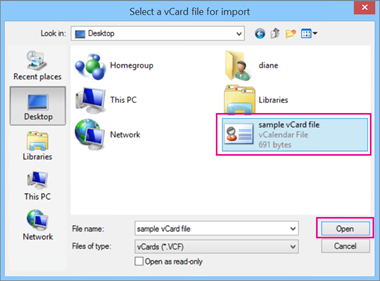
- Navigate to and choose the .vcf file that you exported from iCloud, then choose Open.
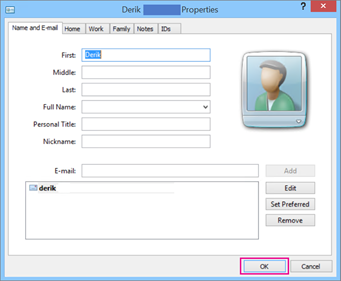
- For each contact you want to import to the .csv file, choose OK.
- When you're finished, choose Close.
- At the top of the File Explorer page, choose Export.
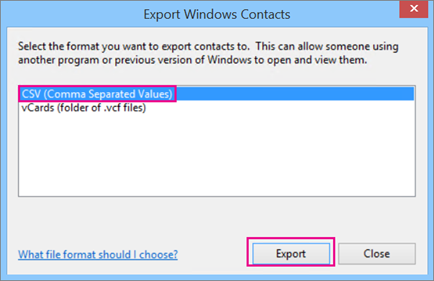
- Choose CSV file > Export.
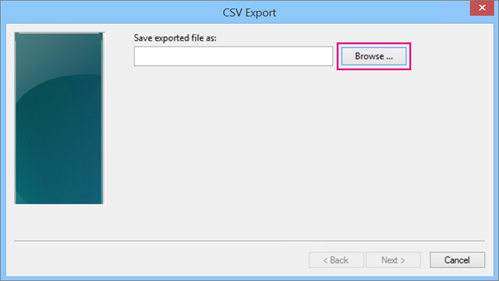
- Choose Browse to name your csv file.
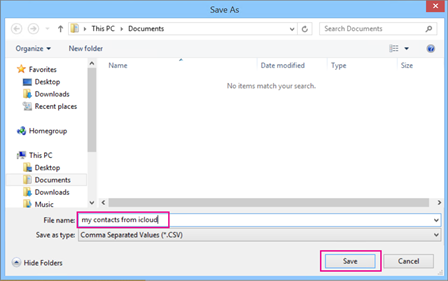
- In the File name box, type a name for your .cvs file. In this example, I named my file "my contacts from iCloud."
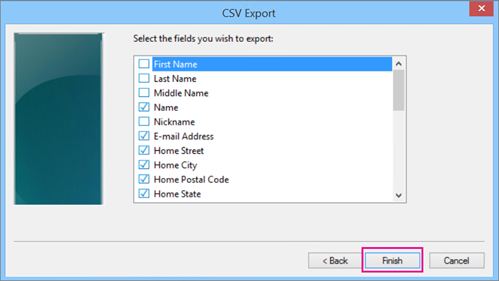
- Choose the fields you want to export into the .csv file and then choose Finish. It's recommended that you accept the defaults for now. You can always create another csv file if you want other fields.
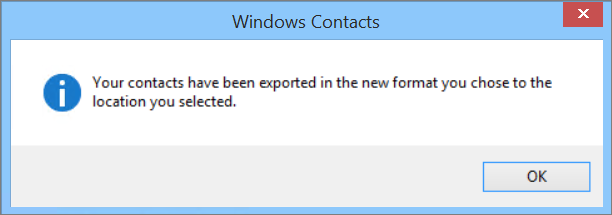
- You'll get this final message that your contacts have been exported to a .csv file.
- You can use Excel to open your .csv file to see what's there. You can add more info to the csv file if you want, but be sure not to change the top row of headings.
- Now that your contacts are in .csv format, you can import them to Outlook. For more information, go to Import contacts from a .csv file