

You can copy a single page or an entire Visio drawing file.
Copy a Visio page to another Visio file
- Press Ctrl+A to select all the shapes on the page you want to copy.
- Press Ctrl+C to copy all the shapes.
- Switch to the other Visio file.
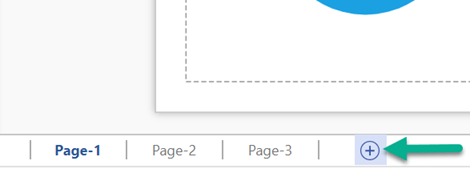
- Select the existing page where you want to paste the shapes, or select the Insert a new page
 button on the Status bar at the bottom of the window to create a new page:
- On the destination page, press Ctrl+V to paste the shapes.
Copy an entire Visio file
Visio makes it easy to copy an entire file:
- In Visio, select File > Open.
- In the list of recently opened files, locate the file you want to copy.
- Right-click the file name and select Open a Copy.
A new copy of the file is opened and it's given a generic name such as Drawing1. - Select File > Save As to give the file a new name and to choose a folder you want to store it in.