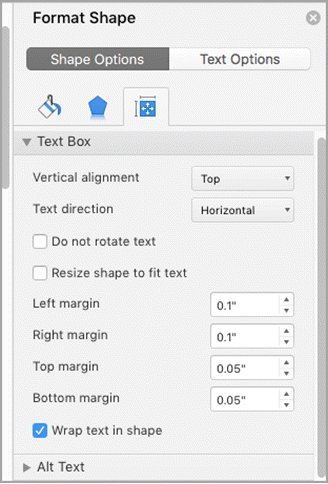
In a text box in Word, you can align text horizontally or vertically, and you can adjust the margins to be narrower or wider. Horizontal alignment determines how the left and right edges of a paragraph fit between the margins, while vertical alignment determines the placement of the text between the top and bottom of the text box.
Note
This content applies to Word for Mac.
Align text horizontally
- In the text box, select the text that you want to change the horizontal alignment for.
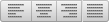
- On the Home tab, select the alignment option that you want
 .
.
Align text vertically
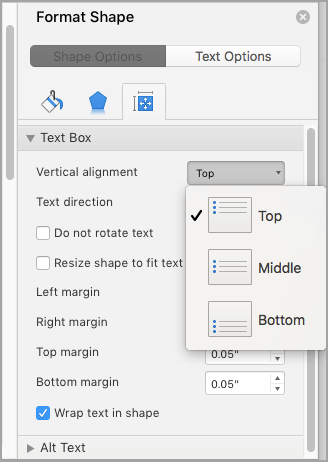
You can align all the text in a text box with the top, middle, or bottom of the text box.
Click the outer edge of the text box to select it.
On the Shape Format tab, click Format Pane.
Note
The Shape Format tab appears only when a text box or shape is selected.
Select the Shape Options tab if it isn't already selected.
Select the text box icon
 , and then select Text Box.
Choose Top, Middle, or Bottom from the Vertical alignment drop-down list.
Adjust the text box margins
- Click the outer edge of the text box to select it.
- On the Shape Format tab, click Format Pane.
- Click the Shape Options tab if it isn't already selected.
- Click the text box icon
, and then click Text Box.
- You can adjust the left, right, top, and bottom margins.