

If you format a document with columns (as in some newsletter layouts), the text will automatically flow from one column to the other. You can insert your own column breaks for more control over the document format.
Note
Steps apply to Word for Windows using Print Layout view (including Word for Microsoft 365 and recent desktop versions).
- Place your cursor where you want the column to break.
- Click Layout > Breaks.
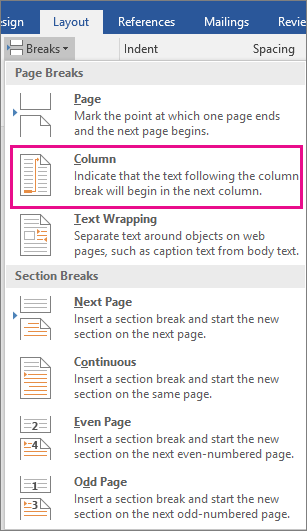
- A menu with options will appear. Click Column.
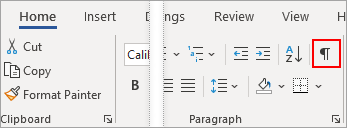
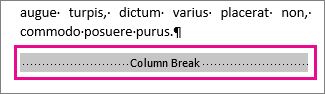
- A column break is inserted. Click Home > Show/Hide
 to see it.
Tip
The keyboard shortcut Ctrl+Shift+Enter also inserts a column break where you’ve placed your cursor.