Note
The content and steps in this article apply to Word for Microsoft 365 and other desktop versions of Word for Windows.
Create a document from scratch or from a template .
Add text, images, art, and videos.
Research a topic and find credible sources.
Access your documents from a computer, tablet, or phone via OneDrive.
Share your documents and collaborate with others.
Track and review changes.
Create a new document
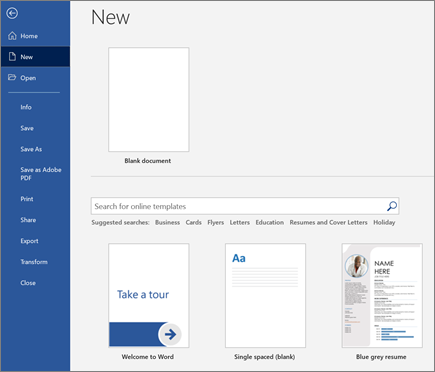
- On the File tab, select New .
- Select Blank document , or double-click a template image or type the kind of document into the Search for online templates box and press Enter .
Tip
For practice using Word features, try a learning guide like Welcome to Word or Insert your first table of contents .
Add and format text
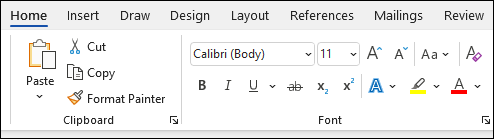
- Click on your new blank page and type some text.
- Select text to format and choose font options on the Home tab: Bold , Italic , Bullets , Numbering , and more.
Add Pictures, Shapes, SmartArt, Chart, and more
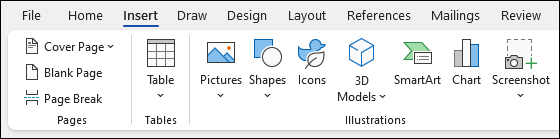
- Select the Insert tab.
- Select what you want to add:
- Tables - choose
 Table , hover over the size you want, and select it.
 - Pictures - select
 Pictures , browse for an image on your computer, an online stock image, or with an image search on Bing.
Note
Older versions of Word may have Online Pictures on the ribbon next to Pictures .
- Shapes - select
 Shapes and choose a shape from the dropdown.
 - Icons - choose
 Icons , pick the one you want, and select Insert .
 - 3D Models - select
 3D Models , choose from a file or online source, pick the image you want, and select Insert .
 - SmartArt - choose
 SmartArt , pick a SmartArt Graphic , and select OK .
 - Chart - select
 Chart , choose the chart you want, and select OK .
 - Screenshot - select
 Screenshot and select one from the dropdown.