

A calculated column lets you add derived data to a table in the Data Model. Instead of pasting or importing values into the column, you create a Data Analysis Expressions (DAX) in Power Pivot formula that defines the column values.
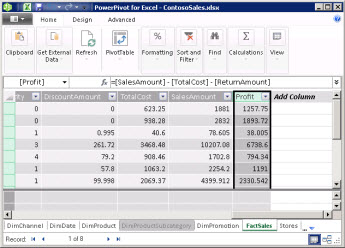
For example, you might need to add sales profit values to each row in a FactSales table. By adding a new calculated column and using the formula = [SalesAmount] - [TotalCost] - [ReturnAmount], you calculate new values by subtracting values from each row in the TotalCost and ReturnAmount columns from values in each row of the SalesAmount column. You can then use the Profit column in a PivotTable, PivotChart, or other analyses that use the Data Model.
This figure shows a calculated column in Power Pivot.
Note
Although calculated columns and measures both rely on formulas, they serve different purposes. Measures are most often used in the Values area of a PivotTable or PivotChart. Use calculated columns when you need a calculated value stored for each row and available as a field in PivotTables, PivotCharts, slicers, filters, rows, columns, or chart axes. For more information about measures, see Measures in Power Pivot.
Understanding calculated columns
The formulas in calculated columns are much like the formulas you create in Excel. However, you can't create different formulas for different rows in a table. Instead, the DAX formula automatically applies to the entire column.
When a column contains a formula, it computes the value for each row. Values in the column are calculated immediately after you enter the formula, and are recalculated when the underlying data changes or dependent calculations are updated.
Calculated columns can reference other calculated columns and measures in the same data model. For example, you might create one calculated column to extract a number from a string of text, and then use that number in another calculated column.
Example
You can create calculated columns by using data that already exists in the table. For example, you might choose to concatenate values, perform addition, extract substrings, or compare the values in other fields. To add a calculated column, you should already have at least one table in Power Pivot.
For example:
= EOMONTH([StartDate], 0)
In the following example, the formula uses values from the StartDate column in a Promotion table. It then calculates the end of the month value for each row in the Promotion table. The second parameter specifies the number of months before or after the month in StartDate; in this case, 0 means the same month. For example, if the value in the StartDate column is 6/1/2001, the value in the calculated column will be 6/30/2001.
Naming calculated columns
By default, new calculated columns are added to the right of other columns, and the column is automatically assigned the default name of CalculatedColumn1, CalculatedColumn2, and so on. After creating columns, you can rearrange and rename columns as necessary.
There are some restrictions on changes to calculated columns:
- Each column name should be unique within a table.
- Avoid names that are already used for measures within the same data model. To avoid confusion, use distinct names and fully qualified column references when referring to columns.
- When renaming a calculated column, you must also update any formulas that rely on the existing column. Unless you're in manual update mode, updating the results of formulas occurs automatically. However, this operation might take some time.
- You can't use certain characters within the names of columns, or in the names of other objects in Power Pivot. For more information, see "Naming Requirements" in DAX syntax.
To rename or edit an existing calculated column
- In the Power Pivot window, right-click the heading of the calculated column that you want to rename, and click Rename Column.
- Type a new name, and then press ENTER to accept the new name.
Changing the data type
You can change the data type for a calculated column in the same way you change the data type for other columns. Conversion might fail if the data contains incompatible values.
Performance of calculated columns
Calculated columns can be more resource-intensive than measures because their values are calculated and stored for every row in a table. In contrast, a measure is calculated only for the cells that are used in a PivotTable or PivotChart.
For example, a table with a million rows always has a calculated column with a million results, and a corresponding effect on performance. However, a PivotTable generally filters data by applying row and column headings. This means that the measure is calculated only for the subset of data in each cell of the PivotTable.
A formula has dependencies on the object references in the formula, such as other columns or expressions that evaluate values. For example, a calculated column that is based on another column or a calculation that contains an expression with a column reference can't be evaluated until the other column is evaluated. By default, automatic refresh is enabled. Keep in mind that formula dependencies can affect performance.
To avoid performance issues when you create calculated columns, follow these guidelines:
- Rather than create a single formula that contains many complex dependencies, create the formulas in steps, with results saved to columns, so that you can validate the results and evaluate the changes in performance. When possible, consider using measures instead of calculated columns for calculations that don't need to be stored for every row.
- Modifications to data often induce updates to calculated columns. You can prevent this behavior by setting the recalculation mode to manual. If recalculation is set to manual, calculated column results might not reflect recent data changes until you refresh and recalculate the model.
- If you change or delete relationships between tables, formulas that use columns in those tables become invalid.
- If you create a formula that contains a circular or self-referencing dependency, an error occurs.
Tasks
For more information about working with calculated columns, see Create a Calculated Column in Power Pivot.