
An XML map and its data source information are saved with the workbook, not with a specific worksheet. A malicious user could view this potentially sensitive map information by using a Visual Basic for Applications (VBA) macro. If you save your workbook as a macro-enabled Excel Open XML Format file, you can view this map information through Notepad or another text-editing program.
Note
XML mapping features are available only in Excel for Windows desktop. They're not available in Excel for Mac or Excel for the web. XML maps are a legacy feature. For many XML import and transformation scenarios, consider using Power Query instead.
Delete the data source definition of the XML map from the workbook
If you want to keep using the map information but remove the potentially sensitive data source information, delete the data source definition of the XML schema from the workbook. In this case, you can still export the XML data.
This procedure permanently removes the current data source definition from the XML map.
Select a mapped cell to select the XML map that you want.
If the Developer tab isn't available, follow these steps to display it:
- On the File tab, select Options > Customize Ribbon.
- Select the Developer check box.
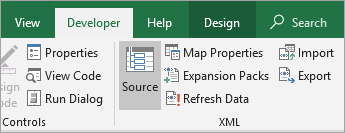
On the Developer tab, select Map Properties.
In the XML Map Properties dialog box, under Data source, clear the Save data source definition in workbook check box.
This option is selected by default. Clearing this option doesn't delete any data from the worksheet.
Important
The data source definition contains connection information about the imported XML data. Removing this information prevents others from viewing it, but you can still export the mapped data to an XML file. If you reimport the XML data file, the data source definition is once again saved with the file.
Delete an XML map from a workbook
If you delete a worksheet before deleting an XML map, the map information, including data source details and possibly other sensitive information, remains in the workbook. To remove sensitive information, delete the XML map before deleting the worksheet to permanently remove the map information from the workbook.
If the Developer tab isn't available, follow these steps to display it:
- On the File tab, select Options > Customize Ribbon.
- Select the Developer check box.
On the Developer tab, in the XML group, select Source.
In the XML Source task pane, select XML Maps.
The XML Maps dialog box appears.
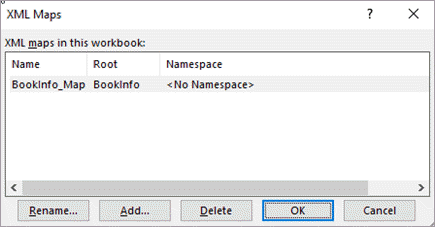
Select the XML map that you want to delete.
Select Delete, and then select OK.
Note
Deleting an XML map removes only the XML map. It doesn't remove any data that the XML map is currently mapped to.
Need more help?
You can always ask an expert in the Excel Tech Community or get support in Communities.