

The Scientific format displays a number in exponential notation, replacing part of the number with E+n, in which E (exponent) multiplies the preceding number by 10 to the nth power. For example, a 2-decimal scientific format displays 12345678901 as 1.23E+10, which is 1.23 times 10 to the 10th power.
Follow these steps to apply the scientific format to a number.
Select the cells that you want to format. For more information, see Select cells contents in Excel.
Tip
To cancel a selection of cells, click any cell on the worksheet.
Go to Home, in the Number group, click the small More button
 next to Number to open the Format Cells dialog.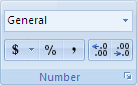
In the Category list, click Scientific.
Using the small arrows, specify the Decimal places that you want to display.
Tip
The number that is in the active cell of the selection on the worksheet appears in the Sample box so that you can preview the number formatting options that you select.
Also, remember that:
- To quickly format a number in scientific notation, click Scientific in the Format Cells box, Number tab, (Home tab, Number group). The default for scientific notation is two decimal places.
- A number format doesn't affect the actual cell value that Excel uses to perform calculations. You can see the actual value in the formula bar.
- The maximum limit for number precision is 15 digits, so the actual value shown in the formula bar might change for large numbers (more than 15 digits).
- To reset the number format, click General in the Format Cells box, Number tab, (Home tab, Number group). Cells that are formatted with the General format don't use a specific number format. However, the General format does use exponential notation for large numbers (12 or more digits). To remove the exponential notation from large numbers, you can apply a different number format, such as Number.