

In September 2018, we released dynamic array formulas for Excel for Microsoft 365. The following sections describe the differences between dynamic arrays and legacy Ctrl+Shift+Enter (CSE) formulas.
Dynamic array formulas:
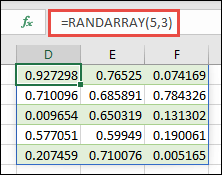
Can "spill" outside the cell bounds where you enter the formula. The following example shows the RANDARRAY function in D1, which spills across D1:F5, or 5 rows by 3 columns. You enter the dynamic array formula only in cell D1, and its results spill into the adjacent cells. In contrast, you must enter a legacy CSE formula across the entire output range and confirm it by pressing Ctrl+Shift+Enter.
Automatically resize as you add or remove data from the source range. CSE array formulas truncate the return area if it's too small, or return #N/A if it's too large.
Evaluate formulas in a single-cell context. For instance, the RAND function returns a single result, so if you want multiple random numbers returned to the grid, use the RANDARRAY function. When you omit the reference argument, the ROW and COLUMN functions return the row and column numbers of the cell that contains the formula. To generate a sequential array, use the SEQUENCE function and specify the required number of rows or columns.
Automatically spill when they return more than one result. There's no need to press Ctrl+Shift+Enter.
Excel retains CSE array formulas for compatibility reasons. For new workbooks, use dynamic array formulas instead.
When cells in a legacy CSE array formula depended on one another, Excel attempted to calculate each individually instead of as an array. This behavior was referred to as "CSE breakup" and, under certain circumstances, formulas calculated in this way could produce inconsistent results. To avoid the potential for inconsistent results, use separate formulas instead of relying on CSE breakup. Dynamic array formulas don't break up. Instead, they report the circular reference so that you can address it.
Can be easily modified by changing the source cell, whereas CSE array formulas require that you edit the entire range simultaneously.
You can't insert or delete rows or columns within an active CSE array formula range. To make those changes, first remove the array formula.
Need more help?
You can always ask an expert in the Excel Tech Community or get support in Communities.