
This article explains common scenarios where you encounter the #VALUE! error when using INDEX and MATCH functions together in a formula. One of the most common reasons to use the INDEX and MATCH combination is when you want to look up a value in a scenario where VLOOKUP won’t work for you, like if your lookup value is more than 255 characters.
Problem: The formula isn't entered as an array
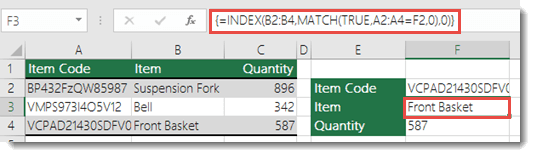
If you use INDEX as an array formula along with MATCH to retrieve a value, you need to convert your formula into an array formula. Otherwise, you see a #VALUE! error.
Solution: Use INDEX and MATCH as an array formula, which means you need to press CTRL+SHIFT+ENTER. This action automatically wraps the formula in braces {}. If you try to enter them yourself, Excel displays the formula as text.
Note
If you have Excel for Microsoft 365, enter the formula in the output cell, and then press ENTER to confirm the formula as a dynamic array formula. Otherwise, enter the formula as a legacy array formula by first selecting the output cell, entering the formula in the output cell, and then pressing CTRL+SHIFT+ENTER to confirm it. Excel inserts curly brackets at the beginning and end of the formula for you. For more information about array formulas, see Guidelines and examples of array formulas.
Note
In Excel for Microsoft 365, dynamic arrays eliminate the need for legacy array-entry keystrokes for many formulas. For many lookup scenarios, XLOOKUP provides a simpler alternative to INDEX and MATCH.
Need more help?
You can always ask an expert in the Excel Tech Community or get support in Communities.
See also
How to correct a #VALUE! error
Look up values with VLOOKUP, INDEX, or MATCH
Detect formula errors in Excel