

By default, gridlines don't appear on a printed Microsoft Excel worksheet or workbook. This article describes how you can make the gridlines appear in your printed worksheets.
Select the worksheet or worksheets that you want to print. For more information, see Select one or multiple worksheets.
Tip
When multiple worksheets are selected, [Group] appears in the title bar at the top of the worksheet. To cancel a selection of multiple worksheets in a workbook, select any unselected worksheet. If no unselected sheet is visible, right-click the tab of a selected sheet, and then select Ungroup Sheets.
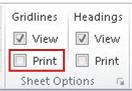
On the Page Layout tab, in the Sheet Options group, select the Print check box under Gridlines.
Note
If the check boxes in the Sheet Options group appear dimmed, it may be because you have a chart, image, or other object selected on the worksheet. If you cancel that selection, you'll be able to use the check boxes.
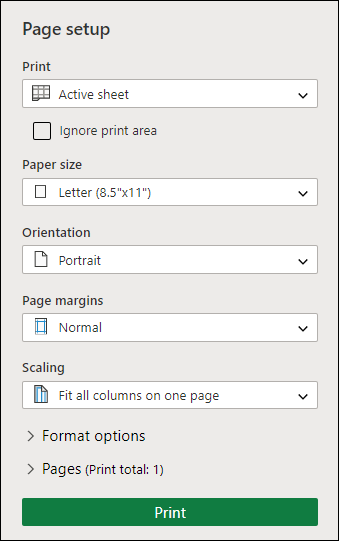
Select the File tab, and then select Print.
Keyboard shortcut -- You can also press Ctrl+P.Select the Print button.
Next steps
After you select the Print check box, you might want to take the following steps:
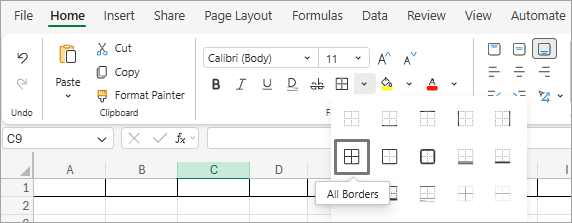
Preview the gridlines – To see how the gridlines will print, check the Print Preview window (or in some versions you can press Ctrl+F2 to open the File tab, which displays a preview of a printed worksheet). Gridlines print only around actual data in a worksheet. If you want to print gridlines around empty cells also, you must set the print area to include those cells. Or, you can apply borders around the cells instead. To learn more about these options, see Define or clear a print area on a worksheet or Apply or remove cell borders on a worksheet.
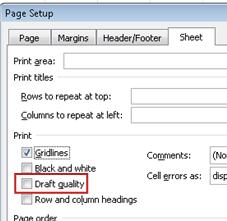
Troubleshoot printing issues with gridlines – If gridlines don't show up when you print your worksheet, or if you can't see them in the Print Preview window, check that the Draft quality check box is not selected. Select File > Print and then select the Page Setup link. Select the Sheet tab and if the Draft quality check box is selected, clear the selection. For a shortcut to access the Page Setup dialog box, press Alt+P, S, P.
If gridlines still don't print successfully, there may be an issue with your printer driver. In this case, you can try downloading the latest driver from the printer manufacturer's website. As a last resort, you can apply borders around the cells that you want to print. For more information, see Apply or remove cell borders on a worksheet.
Need more help?
You can always ask an expert in the Excel Tech Community or get support in Communities.