
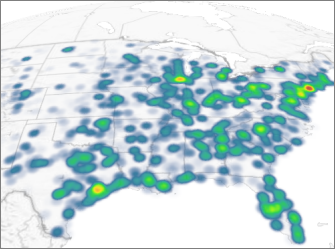
When you open 3D Maps, your geographic data is displayed on a map and can be visualized using several chart types, including column charts and heat maps. You can switch to a heat map, where colors represent your data, making it easy to identify patterns and concentrations in large amounts of geographic data at a glance.
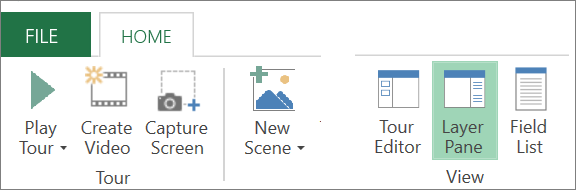
Select Home > Layer Pane.
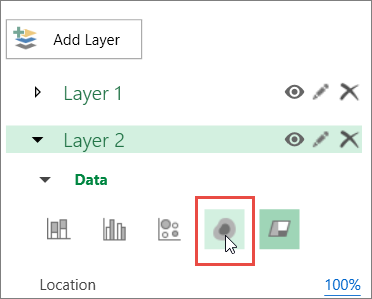
In the Layer Pane, select the layer you want to display as a heat map, and then select the Heat Map icon.
Note
- When you switch to a heat map, the Height field changes to Value.
- Zoom in or rotate the chart to get a better view of the heat map.
- You can’t add annotations to heat maps.