
Power Pivot is an add-in that you can use to perform powerful data analysis in Excel.
Open the Power Pivot window
- Select Power Pivot.
This is the tab where you work with Power Pivot PivotTables, calculated fields, and key performance indicators (KPIs), and creating linked tables. - Select Manage.

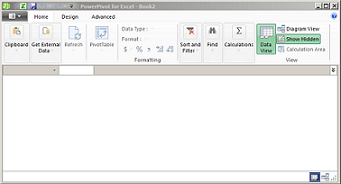
Now you’re in the Power Pivot window. Here you can click Get External Data to use the Table Import Wizard to filter data as you add it to your file, create relationships between tables, enrich the data with calculations and expressions, and then use this data to create PivotTables and PivotCharts.
More about Power Pivot.
Troubleshooting: Power Pivot ribbon disappears
In rare cases, the Power Pivot ribbon disappears from the menu if Excel determines that the add-in is destabilizing to Excel. This condition might occur if Excel closes unexpectedly while the Power Pivot window is open. To restore the Power Pivot menu, complete the following steps:
- Go to File > Options > Add-Ins.
- In the Manage box, select Disabled Items > Go.
- Select Microsoft Office Power Pivot and then select Enable.