
Microsoft Copilot Chat can help you complete complex work that involves multiple steps, sources, and Microsoft 365 apps. Describe the outcome you want, and Copilot can create a plan, work through the steps, and produce a response or finished deliverable.
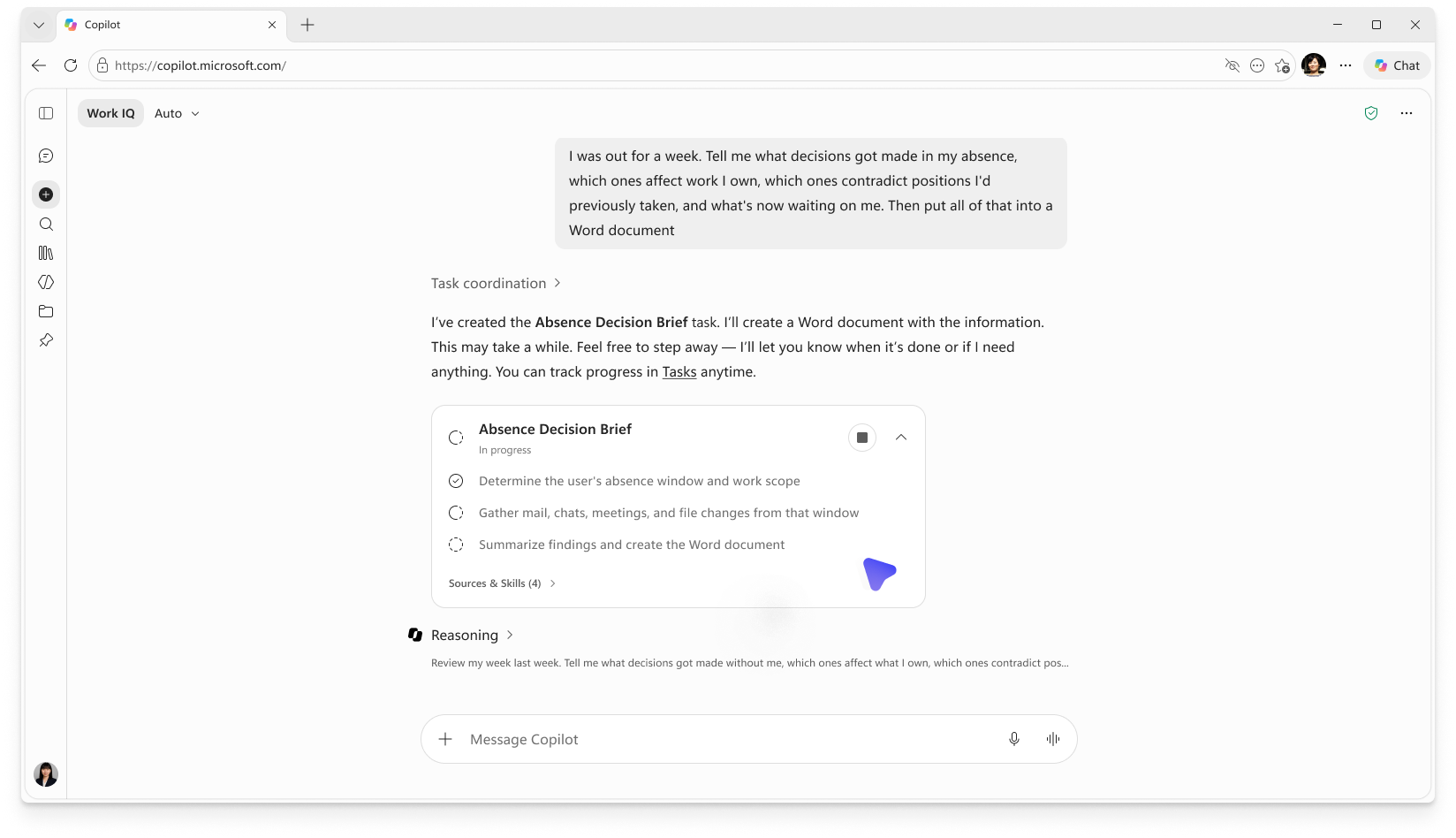
These capabilities are built into Copilot Chat. When your request requires deeper analysis or coordinated, multistep work, Copilot Chat can automatically create and run a task.
Note
Long-running and multistep tasks are currently available through the Frontier program for users with a Microsoft Copilot license. For more information about the Frontier program, see What is Frontier?
What you can do
You can use Copilot Chat to:
- Research and analyze information across your Microsoft 365 work data.
- Catch up on emails, meetings, and chats and identify follow-up items.
- Plan and prioritize work that involves multiple sources or steps.
- Analyze information and create deliverables, such as documents, spreadsheets, presentations, and PDFs.
- Take actions across Microsoft 365. Copilot asks for your approval before sending or changing anything.
Start a long-running or multistep task
- Open Microsoft Copilot on the web and sign in with your Microsoft 365 account.
- Make sure Auto is selected in the model picker.
- In the message box, describe the outcome you want Copilot to produce.
- Send your prompt.
Tip
Describe the complete outcome you want rather than a single action.
For example, try these prompts:
Prioritize your work:
 Review my recent emails, meetings, and Teams chats. Identify unfinished commitments, recommend next steps, and create a prioritized action plan.
Catch up after time away:
Catch me up after being out of office and recommend next actions.
Manage projects:
Connect meeting discussions, actions, and shared files and organize follow-ups.
Auto mode evaluates your request and chooses the appropriate Copilot Chat experience. Simple requests receive a standard response, while qualifying requests that require deeper analysis, coordinated steps, or long-running work are routed automatically.
Follow and control a task
When Copilot creates a task, you can follow its plan as it works and review its sources and additional details. When the task is complete, Copilot surfaces the result and any finished files in the response.
You can also:
- Stop a task: If you no longer want Copilot to continue the task, stop it before it finishes.
- Get a quick answer: If you don't need the full task, select Get a quick answer to receive a faster response instead.
Copilot asks for your approval before completing sensitive actions, such as sending an email, posting a Teams message, changing your calendar, or sharing or changing content.
What information Copilot can use
Copilot Chat can use Microsoft 365 work data that you already have permission to access, including emails, files, meetings, and chats. It can also combine this information with web search.
Copilot only accesses content you already have permission to access and requires your approval before completing sensitive actions. These capabilities operate within Microsoft 365's existing compliance and data-handling commitments. To learn more, see Data, Privacy, and Security for Microsoft Copilot.