

To make the text on your slides easier to read, change the spacing between lines of text and between paragraphs in your PowerPoint presentation. You can also adjust the alignment and indentation of lines of text.
On the Home tab of the Ribbon, in the Paragraph group, select Line spacing to change the spacing between lines and select Align Text to change the vertical alignment.
You can find more detailed spacing options in the Paragraph dialog box:
On the slide, select the text that you want to change.
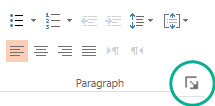
Select Home, and in the Paragraph group, select the dialog box launcher.
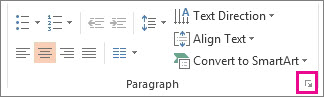
The Paragraph dialog box appears:
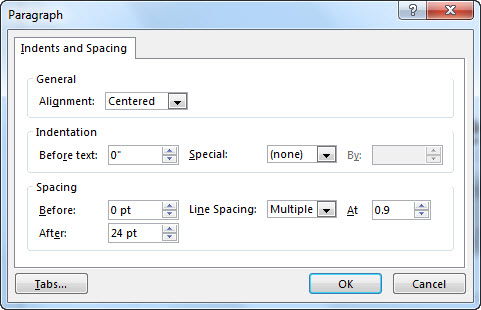
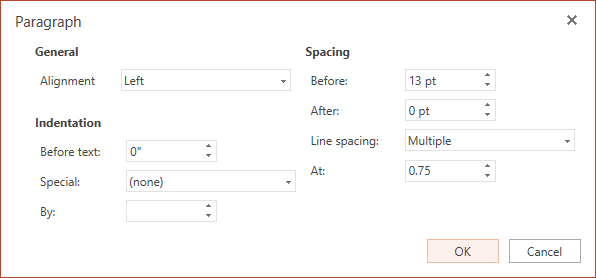
Here are the options available in the dialog box:
Alignment
- To change the horizontal placement of text, in the Alignment box, choose Left, Center, Right, Justified, or Distributed. Justified adds spacing between words so that the lines of text touch both side margins, except for the last line of the paragraph, which uses normal word spacing. Distributed is similar to Justified, but even the last line touches both the side margins, with space added between words and letters, as necessary.
Indentation
- To add indentation or change the amount of indentation before text, select or type a number in the Before text box. Use the Special options to indent only the first line or to add a hanging indent.
Indentation is measured in inches, and it can be any whole number or decimal, such as 1.2 inches.
Spacing
- To change the spacing above or below a paragraph, type a number or select the arrows next to Before or After. This number can be any whole number or a decimal, such as 6.5.
- To change the spacing above and within a paragraph, use the Line Spacing options: Single, 1.5 Lines, or Double. Or select Exactly and then add a point value (between 0 and 1584) in the At box. (The bigger the point value, the wider the spacing.) Or select Multiple and add a value to the At box. (Use any number less than or equal to 9.99: A value of
1equals single-spacing, while a value of3equals triple-spacing).
Note
If you keep adding lines until you run out of room in a placeholder, AutoFit adjusts line spacing and font size to fit all list items in the placeholder. When this happens, the AutoFit Options
 control appears. To turn off AutoFit, select AutoFit Options, and then select Stop Fitting Text to This Placeholder.
Related articles
Adjust indents in paragraph text in PowerPoint