
Work breakdown structure (WBS) codes are outline numbers that you can apply to tasks and edit to match the specific needs of your business. Project automatically provides basic outline numbers for each task, but you can apply your own customized outline scheme to the project at any time.
What do you want to do?
Create custom WBS codes
Select View, and then pick a sheet view, such as the Task Sheet or Resource Sheet.
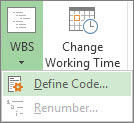
Select Project. In the Properties group, select WBS and then select Define Code.
You can create a project-specific code in the Project Code Prefix box. You can use numbers, uppercase and lowercase letters, and symbols.
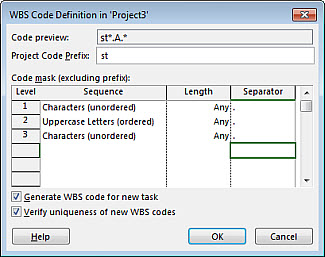
To set the code for first-level tasks, in the first row in the Sequence column, choose a character type from the dropdown list. You can choose from numbers; uppercase or lowercase letters; or a mix of numbers, letters, and other symbols.
In the Length column, set the number of characters for each level of the code string. Select Any to allow any number of characters for that level.
In the Separator column, pick a character to separate the code for one level from the code for the next level.
The default separator is a period. You can choose others or choose not to have a separator character at all.Note
The separator character can’t also be used as part of a code.
Set a code string for each level of indented tasks in your outline.
To specify individual codes for each level, select the next row, and complete the Sequence, Length, and Separator columns.If you don't want Project to automatically assign a WBS code each time that you enter a new task, uncheck the Generate WBS code for new task checkbox.
To permit the use of the same WBS code for multiple tasks, uncheck the Verify uniqueness of new WBS codes checkbox.
Renumber WBS codes
When you move or delete tasks, Project doesn’t automatically renumber the WBS codes in case you’re using them in documents or other systems that are not linked to your Project file. This means that the codes for the remaining tasks will likely be incorrect. Here’s how to renumber the WBS codes for all tasks or selected tasks:
Select View, and then pick a sheet view (such as the Task Sheet) that contains the tasks you want to renumber.
Pick the tasks you want to renumber. The first task you pick won't be renumbered.
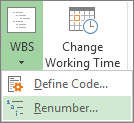
To renumber WBS codes for all tasks, don't select any tasks.Select Project. In the Properties group, select WBS and then select Renumber.
Select Selected tasks to renumber the codes for the tasks you selected.
Select Entire project to renumber the codes for all tasks in the project.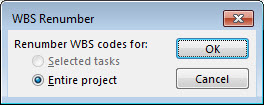
Use basic outline numbers
If you don’t need the detailed structure provided by WBS codes, you can use a basic outline.
Project automatically creates an outline number for each task, based on where the task appears in the structure of the task list. For example, the first task in your task list is numbered 1. If that task has three subtasks, the subtasks are numbered 1.1, 1.2, and 1.3.
Outline numbers consist of numbers only, and you can’t edit them. They change automatically when you move a task up or down in the task list and when you indent or outdent tasks.
To show outline numbers, add the Outline Number field to a table or sheet view. You can also add outline numbers directly to the task names:
- Go to the Gantt Chart or Task Sheet.
- In the Show/Hide group, check Outline Number.