With a complex project, the bar side of the Gantt Chart can start to look crowded with multi-colored bars and link lines flying everywhere. To sort this out visually, you can display a task path to highlight how tasks link to each other.
On the Gantt Chart, select the Format tab.
Select Task Path, and then pick the related task to highlight.
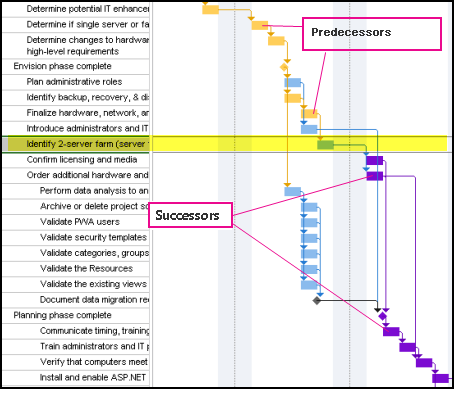
- Predecessors: Tasks that link to and come before the selected task.
- Driving Predecessors: Tasks that come before the selected task and directly impact it. When the driving predecessor task moves, the selected task also moves.
- Successors: Tasks that link to and follow the selected task.
- Driven Successors: Tasks that follow the selected task and are directly impacted by it. When the selected task moves, the driven successor task also moves.
This image shows that predecessors and successors are highlighted on the Gantt Chart.
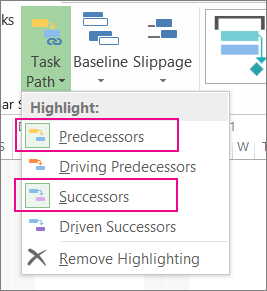
To remove the task path highlighting, select Remove Highlighting.
Project management tip: Both task paths and critical paths show how tasks impact each other or the end date of the project. You can show the critical path along with a selected task path to gain more control over the impact the tasks have on the overall schedule.
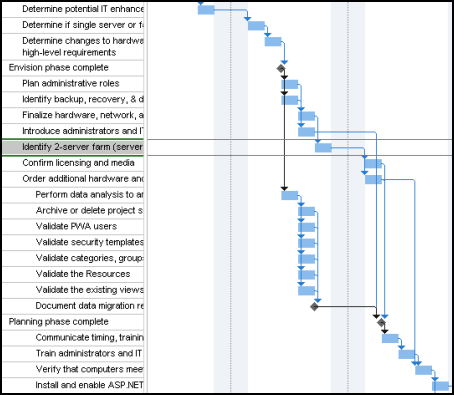
Here are before and after images showing how task paths help you understand the impact of tasks on each other and on the project end date.
Before
A schedule without task paths.
After
A selected task showing predecessors and successors. When a task is selected, it’s “path” is highlighted, telling you instantly what the related task is.