
After entering any of the various rate-based resource costs, cost resources, and fixed costs, you’re ready to check if the overall project cost is within budget, but it’s not very clear where to find that cost total, or perhaps you have overtime costs that you need to calculate.
That’s because cost totals for the project, tasks, resources, and assignments are available in different views, and for some cost totals you open the Cost table to see them.
Let’s start with showing the total cost for the entire project:
Select Project > Project Information.
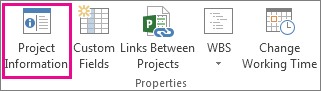
In the Project Information dialog box, select Statistics.
In the Project Statistics dialog box, review the cost totals for the project in the Cost column.
Tip
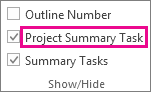
You can also see this cost total on the project summary task in the Gantt Chart view. If it’s not shown, select the Project Summary Task checkbox on the Format tab.
View cost totals for tasks
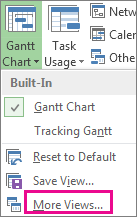
On the View tab, click the arrow for Gantt Chart, and then select More Views.
In the Views list, pick Task Sheet, and select Apply.
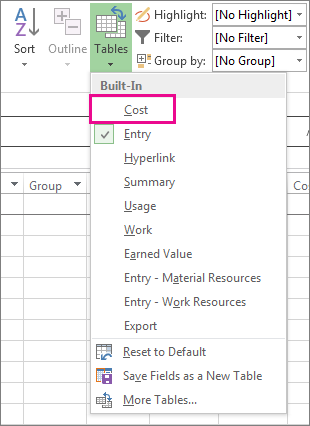
Select View > Tables, Cost to apply the Cost table.
In the Total Cost field, review the cost total for tasks.
Press TAB to move to this field if you don’t see it.
Note
If your tasks total costs appear to be incorrect, see the troubleshooting steps below.
View total costs for resources
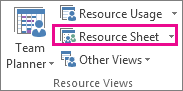
Select View > Resource Sheet.
Select View > Tables, Cost to apply the Cost table.
Review the cost columns.
View total costs for assignments
Select View > Task Usage.
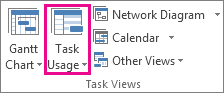
This view shows tasks with the resources that are assigned to them.
Select View > Tables, Cost to apply the Cost table.
Review the costs columns.
The cost of each task reflects the resources assigned to it.
If your task's total costs appear to be incorrect
The expected amount of a task's total cost may seem to differ from the calculated sum of its rate-based costs, per-use costs, and fixed costs. Total costs are the sum of rate-based costs, per-use costs, and fixed costs. Costs are calculated only after resources are assigned to tasks. To resolve discrepancies, try the following:
- Check the assignment total costs and the task's total costs by using the Task Usage view with the Cost table applied. Look for any per-use costs or fixed costs that may have been overlooked.
- Verify total costs at the task level. Fixed costs don't roll up to the Fixed Cost field at the summary task-level.
- Verify that all resources with cost information are assigned to tasks.
- Verify that you have applied the correct cost rate table to the resource assignment.
Calculate overtime costs
By default, Project calculates the work required to complete a task by using the standard rate of each assigned resource. Project doesn't calculate the cost of additional work hours by using the overtime rates that you entered until you specify those hours as overtime work. For example, if a resource is scheduled to work eight hours a day and he or she enters ten hours of actual work, the two hours of additional time isn't automatically considered overtime work.
Select View > Task Usage.
Select View > Tables > Work.
Right-click the Work field and select Insert Column.
In the Field name list, select Overtime Work.
In the Overtime Work field, select the resource assignment for which you want to enter overtime work.
Press TAB to move to the field if it's not visible.
If resource assignments are hidden, select the task's outline symbol to display them.
In the Overtime Work field, enter the amount of overtime work for the resource assignment.
Note
The amount of overtime work that you specify isn't added to the amount of work for the task because work always represents the total amount of work. Overtime work merely represents the portion of the total amount of work that should be considered and rated as overtime. When you enter overtime work, the duration of the task may be shortened, unless the task is a fixed-duration task type.