

A SharePoint page template is a reusable page that you can use as a starting point for new pages or news posts. Changes that you make to a page created from a template don't affect the template. Changes that you later make to the template don't affect previously created pages.
Use a template
Use the Templates gallery to create a page or news post from a template saved on your site, a full-page app, or a template from Microsoft. You must have edit permissions on the site or be a site owner to add a page. If you're a site owner but can't add a page, your administrator might have turned off the ability to do so.
Note
Some Templates gallery functionality is introduced gradually to organizations that opted in to the Targeted Release program. You might not yet see the Templates gallery functionality described in this article, or the experience might look different.
Open the Templates gallery
Open the Templates gallery from any of these entry points:
Site home: Go to your site home page, and then select + New > Page or News post.

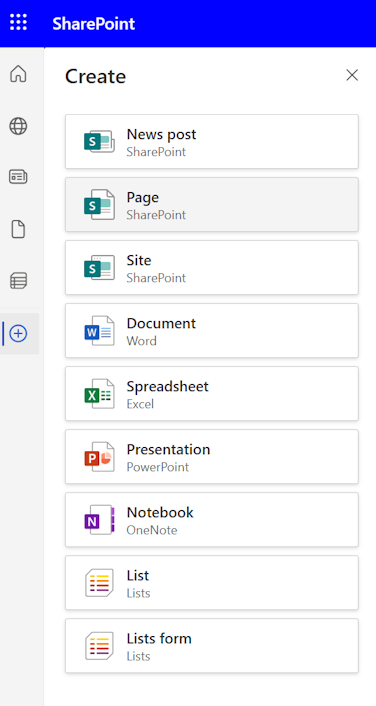
SharePoint app bar: Open the app bar, select + Create, and then select News post or Page.
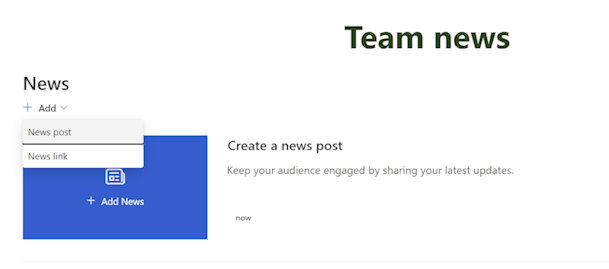
News web part: In view mode, go to the News web part, and then select + Add > News post.
Choose a template
The Templates gallery includes the following sections:
| Section | What it contains |
|---|---|
| Saved on this site | Custom templates saved on the current site |
| Full-page apps | Apps that use the full page |
| From Microsoft | Ready-to-use templates provided by Microsoft |
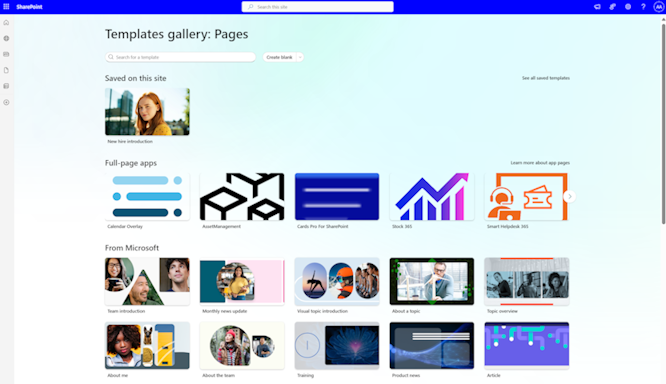
- Select the template that you want to use. To start without a template, select Create blank.
- Add your content. You can also make changes like adding or removing web parts, moving web parts, and so on. Changes you make don't affect the template you started with. For more information on creating pages and using web parts, see Create and use modern pages on a SharePoint site.
- When you're done, save your page by selecting Save and exit.
- When you're ready to make your page visible to everyone who has access to your site, select Publish. For a news post, select Post and send. In some workflows, this option is labeled Publish page.
Create a template
Create a custom template by saving an existing page or news post as a template. You must have edit permissions on the site or be a site owner to add a template. You can't create a template from a home page or use a page template across sites or groups.
The Save as template option is no longer available in the Promote panel. You can find Save as template in the Save and exit menu at the top of the page.
Create or open a page or news post that you want to use as the basis for your template. Add or change the web parts and content you want to be in the template, just like you would on any new page. For more information on creating pages and using web parts, see Create and use modern pages on a SharePoint site.
When your page looks the way you want, select the down arrow next to Save and exit at the top of the page, and select Save as template. After you save your template, it appears in the Templates gallery under Saved on this site.
Note
Template pages aren't published. Only the pages you create from the templates can be published.
Manage custom templates
Use the Templates gallery to open, edit, delete, or set the default selection for a custom template.
Open and edit a custom template
Open a custom template from the Templates gallery to edit and save the template page. Changes to the template don't affect pages that were previously created from the template.
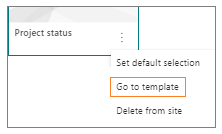
Select More options (...) in the lower-right corner of the template, and then select Go to template.
Edit the template, and then save your changes.
Delete a custom template from the site
When you delete a custom template, you permanently remove it from your site.
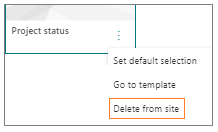
Select More options (...) in the lower-right corner of the template, and then select Delete from site.
Set a template as the default selection
Set a default page template to change the template that SharePoint initially selects for all users on the site. By default, SharePoint selects Blank when you select New and then Page.
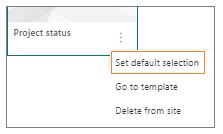
To use another template as the default, select More options (...) in the lower-right corner of the template, and then select Set default selection.
Note
When you change the default selection in the Templates gallery, you change it for all users on the site.
Manage custom templates in the Pages library
Use the Templates folder in the Pages library as an alternate location to edit or delete custom templates. Page templates are copies of pages stored in a draft state. You don't publish template pages; only the pages created from the templates can be published.
To open the Templates folder:
- Open the Templates gallery.
- At the bottom of the Templates gallery, select View templates folder.
Edit a template
To edit a template, open it from the Templates folder in the Pages library and select Edit.
Delete a template
To delete a template, select it from the Templates folder in the Pages library, right-click the template, and select Delete.