

Overview of connector line jumps
Connectors on a page can either intersect as straight crossing lines or as line jumps. You can show or hide line jumps on the current drawing page. You can also configure which crossing connectors receive jumps, the jump style, and the horizontal and vertical jump sizes.
| Connectors with line jumps | Connectors without line jumps |
|---|---|
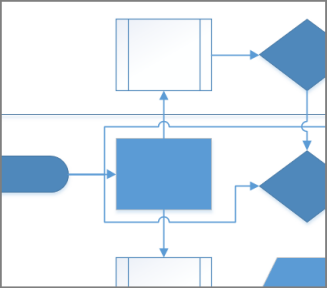
|
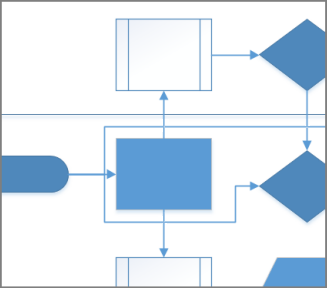
|
Show or remove connector line jumps
As you edit a diagram and add more shapes, you may want to create line jumps when connector lines cross. You can show or remove these line jumps.
On the ribbon, select Design, in the Layout group select Connectors, and then do the following:
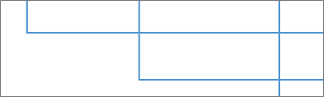
To show jumps over crossing lines, select Show Line Jumps.
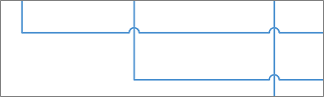
To remove jumps over crossing lines, clear Show Line Jumps.
Configure line-jump settings
Configure line jumps for the current drawing page
On the Design tab, select the Page Setup dialog box launcher.
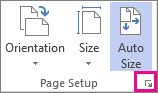
In the Page Setup dialog box, select the Layout and Routing tab, and under Line jumps, configure options and sizes.
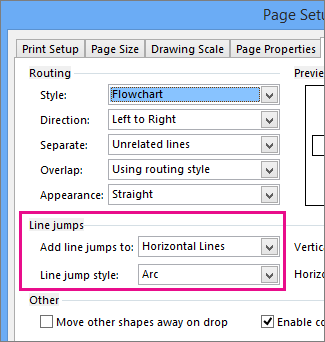
Add line jumps to lets you specify which lines jump. For example, assign jumps to all horizontal lines, or the line added more recently.
Line jump style lets you specify the shape of the jump, such as a smooth arc, a gap, a square, or a multi-sided arc.
Use the sliders, or enter numbers, for Vertical size and Horizontal size to specify the size of line jumps for vertical and horizontal connector lines.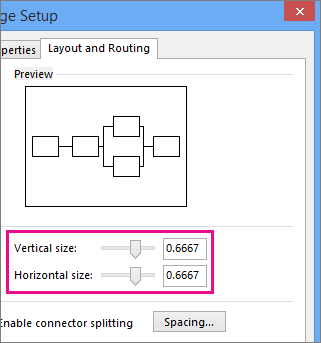
Select Apply or OK.
To remove line jumps from a drawing
On the Design tab, select the Page Setup dialog box launcher.
Select the Layout and Routing tab.
Under Line jumps, in the Add line jumps to list, select None.
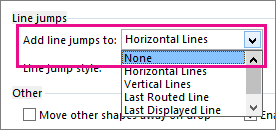
Select Apply or OK.