
Since 2022, new Whiteboard files for commercial customers has been stored in OneDrive rather than Azure. Whiteboard created before that change may still be stored in Azure and must be migrated to OneDrive.
Moving these files to OneDrive improves security, accessibility, revision history, eDiscovery, and access to current and future Whiteboard features. This article explains the final migration schedule, the actions users and administrators should take, and what happens to boards that are not migrated.
Important
Complete migration of all remaining Azure-based Whiteboards before September 25, 2026. On September 25, migration ends and remaining Azure boards become read-only. Users can view and export those boards through October 16, 2026. On October 16, remaining Azure-based Whiteboards are permanently deleted and cannot be recovered. On November 30, 2026, the Azure Whiteboard service shuts down.
Note
Administrators can check whether their tenant has Azure Whiteboards by using Get-WhiteboardsForTenant in the WhiteboardAdmin PowerShell module. Inventory data is precalculated and may take approximately 2 weeks to reflect recent changes.
Final migration and retirement schedule
| Date | What changes |
|---|---|
| Before September 25, 2026 | Users can still trigger migration, retry failed migrations, and copy or export important content. Administrators should inventory remaining Azure boards and notify affected owners. |
| September 25, 2026 | Migration ends. Remaining Azure-based Whiteboards become read-only and can no longer be migrated. Users can still view or export available content before deletion. |
| October 16, 2026 | Remaining Azure-based Whiteboards are permanently deleted and cannot be recovered. |
| November 30, 2026 | The Azure Whiteboard service shuts down. |
Why migrate to OneDrive?
Using OneDrive as the storage location for Whiteboard files provides these benefits:
Enhanced security and compliance: OneDrive provides improved security controls, revision history, and eDiscovery support.
Current and future features: New Whiteboard features are available only for OneDrive-based Whiteboards.
Better accessibility: OneDrive-based files work with current Whiteboard experiences across Microsoft Teams and the web.
For the full feature comparison, see differences between Azure and OneDrive (work or school) whiteboards - Microsoft Support.
What users need to do
Migration trigger and eligible tenants
Until September 25, 2026, migration starts automatically when an affected user opens Whiteboard on an eligible client:
Whiteboard on the web
Whiteboard in Teams desktop or Teams on the web
The Whiteboard Windows app, through September 22, 2026
Mobile apps do not trigger Azure-to-OneDrive migration. The standalone Windows, iOS, and Android apps retire on September 14, 2026. After September 14, use Whiteboard in Microsoft Teams or on the web to trigger migration through September 25.
Monitor and retry migration
Whiteboard displays messages when migration starts, while it is in progress, and when it completes.
If some boards are not migrated, open the Not migrated section to review them.
Select Try Again Now to retry a failed migration before September 25, 2026.
If a board still cannot be migrated, make a copy or export important content before October 16, 2026, and contact your administrator.
Migration can continue across multiple Whiteboard sessions. Closing Whiteboard does not restart completed work.
Recover an original Azure board
After successful migration, the original Azure version can normally be restored for approximately 90 days by using the recovery experience or the Restore-Whiteboard cmdlet, but not beyond October 16, 2026. Create a OneDrive copy of any restored board immediately.
The in-product recovery experience is available in Whiteboard on the web and in the Windows app. It is not available within Teams.
What administrators need to do
Inventory remaining Azure-based Whiteboards and identify their owners.
Notify affected users and ask them to open Whiteboard on an eligible client before September 25, 2026.
Transfer boards owned by dormant or departed users to an active user so that migration can be triggered.
Monitor migration results and help users resolve OneDrive storage, licensing, or provisioning issues.
Export important content that cannot be migrated before October 16, 2026.
Available PowerShell cmdlets
The following migration-related cmdlets are available in the WhiteboardAdmin PowerShell module:
| Task | Cmdlets |
|---|---|
| Inventory Azure boards and owners | Get-WhiteboardsForTenant, Get-Whiteboard, Get-WhiteboardOwners |
| Review migrated boards | Get-WhiteboardsMigrated, Get-WhiteboardsForTenantMigrated |
| Map Azure boards to migrated OneDrive boards | Get-WhiteboardMigrationMapping |
| Transfer ownership | Set-WhiteboardOwner, Invoke-TransferAllWhiteboards |
| Restore an original Azure version | Restore-Whiteboard |
| Export Whiteboards | Export-WhiteboardHtml, Invoke-WhiteboardHtmlRetry |
These tools support inventory, mapping, ownership transfer, recovery, and export. They do not provide a tenant-wide, Microsoft-operated migration of all boards. Migration remains user-driven and client-triggered.
Messaging screens
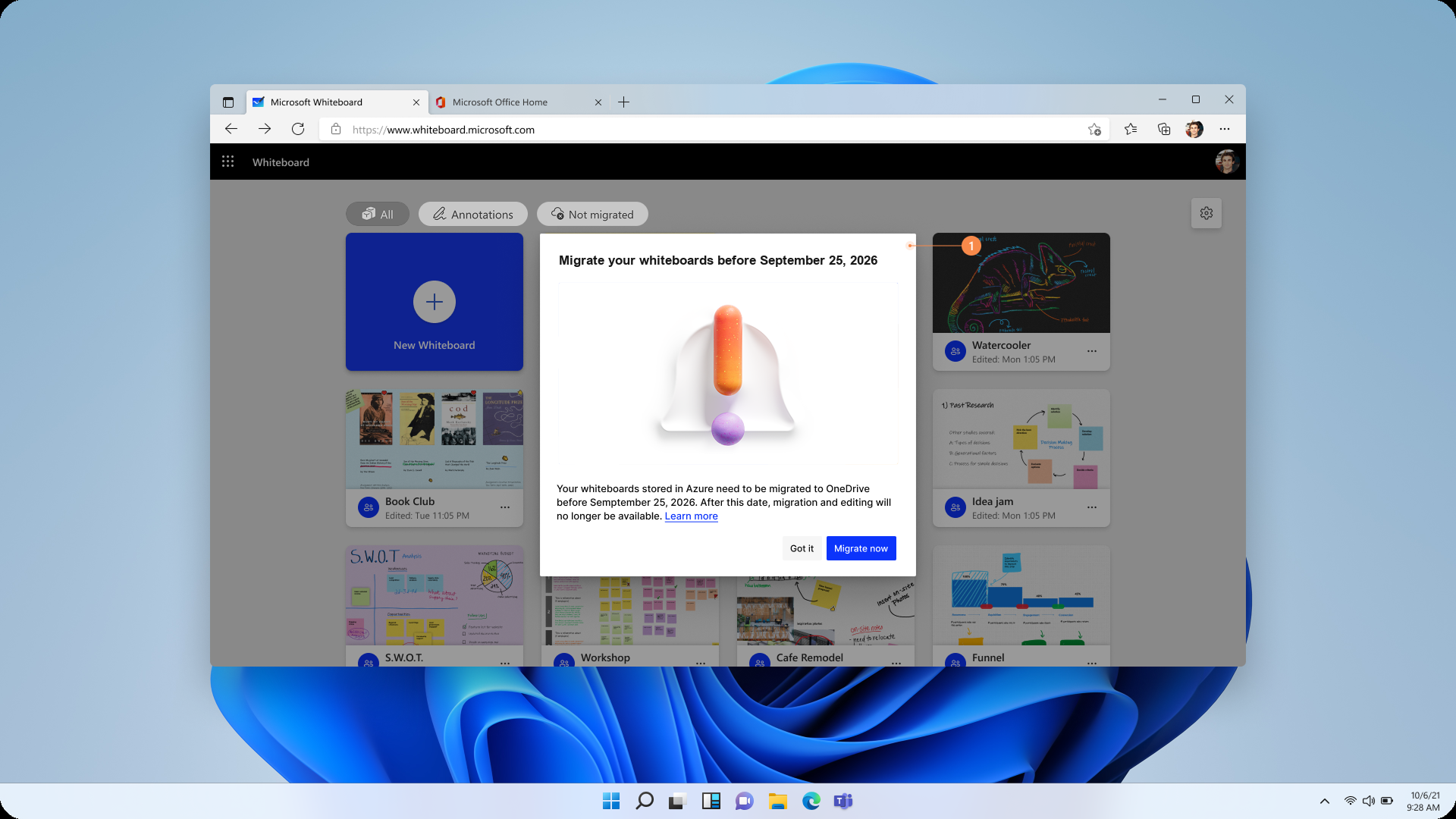
Figure 1: The message a user will see when the migration starts
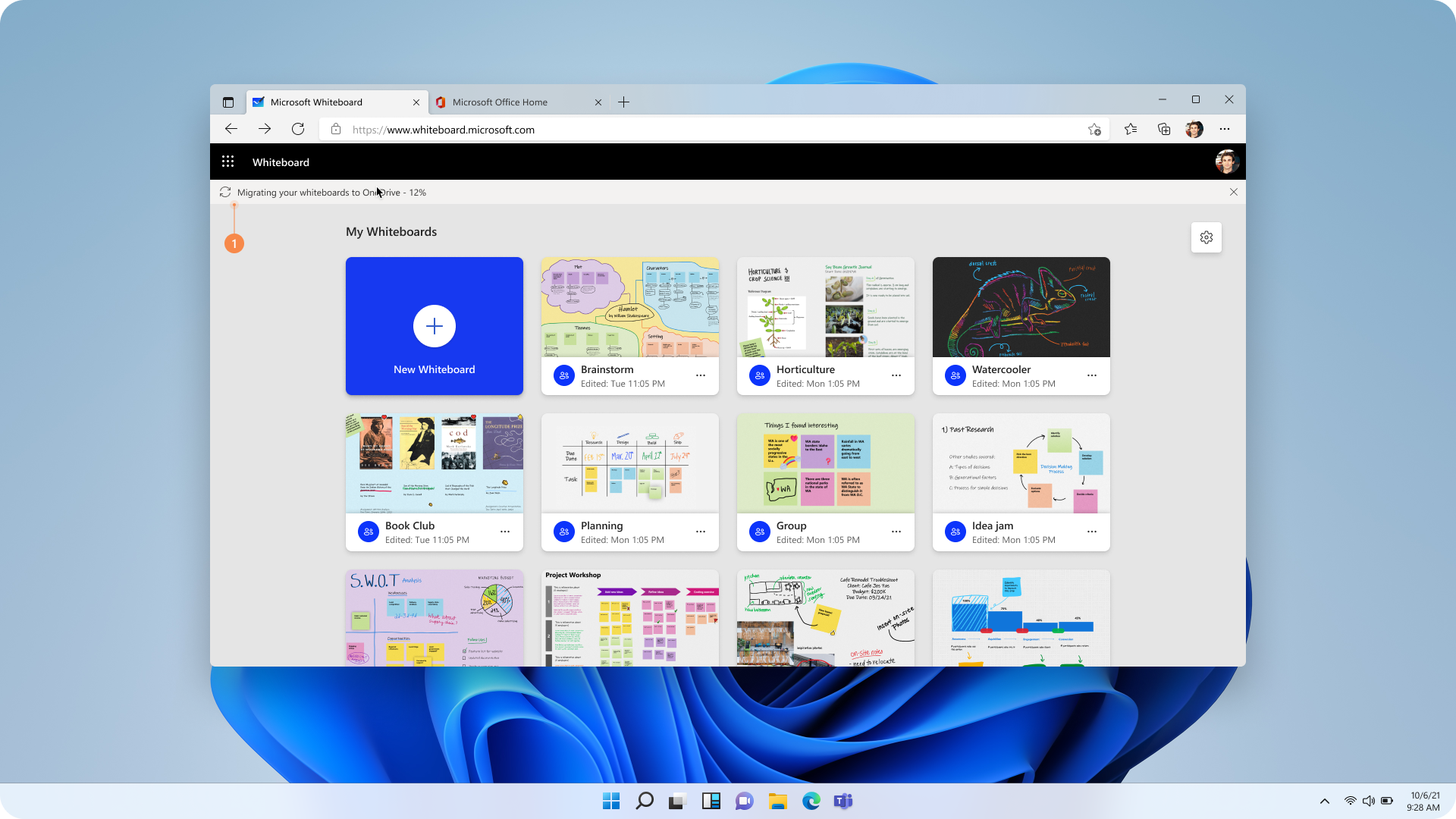
Figure 2: The migration progress will be shown as a message at the top of the screen
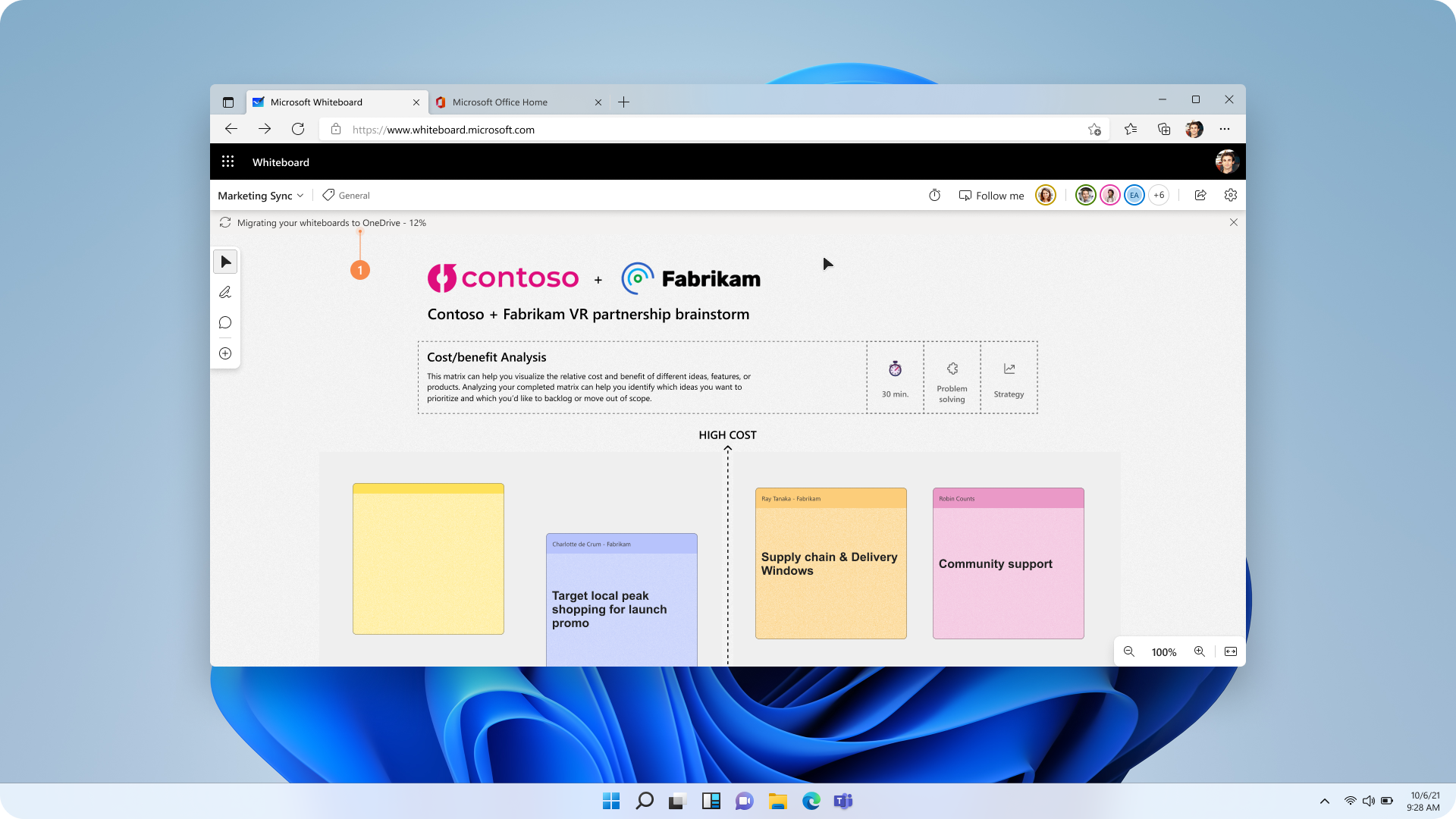
Figure 3: The migration progress will be shown as a message at the top of the canvas
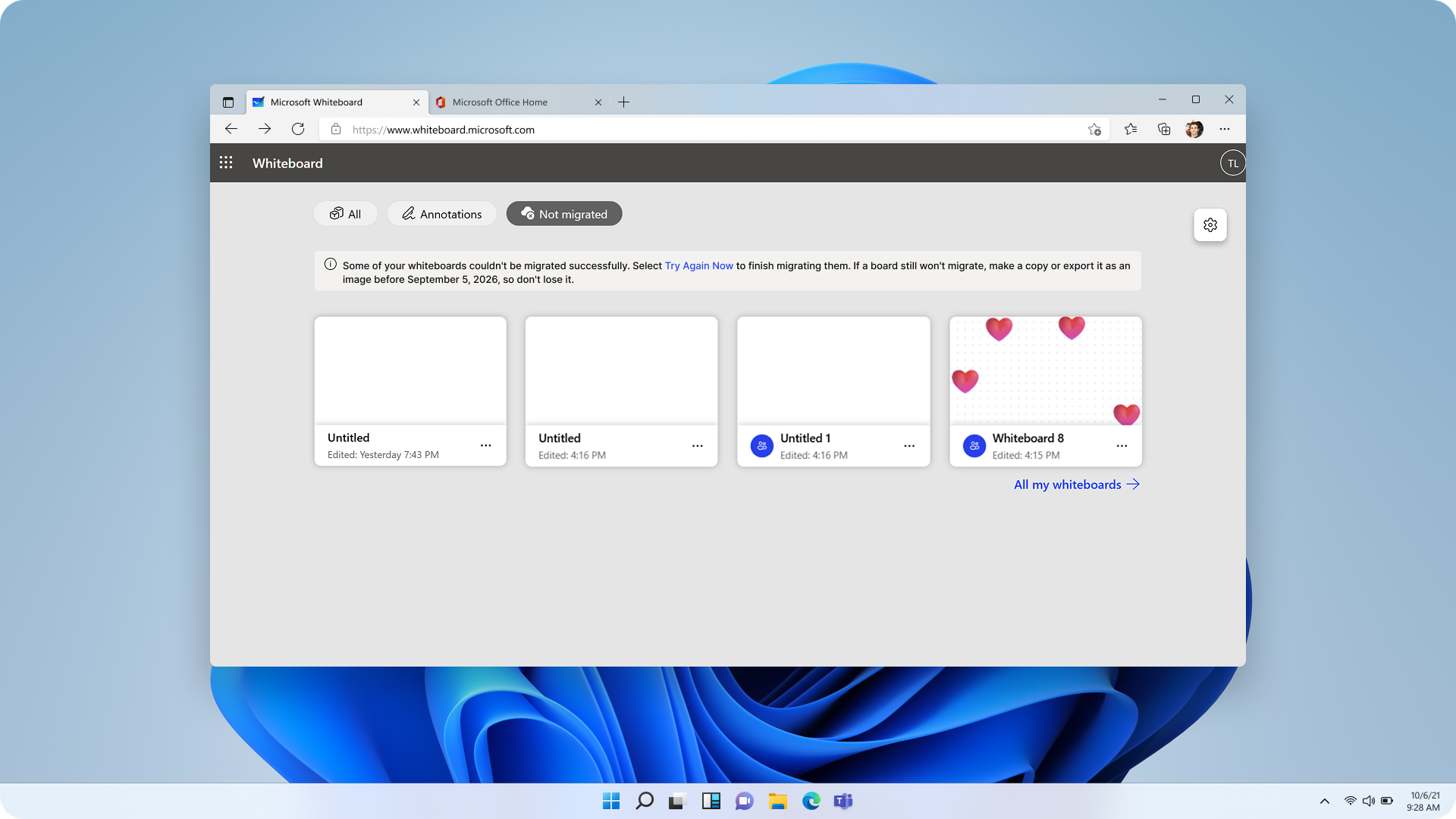
Figure 4: If migration does not complete for all Azure Whiteboards, the unmigrated boards will be shown in a separate section, waiting for the user to take action.
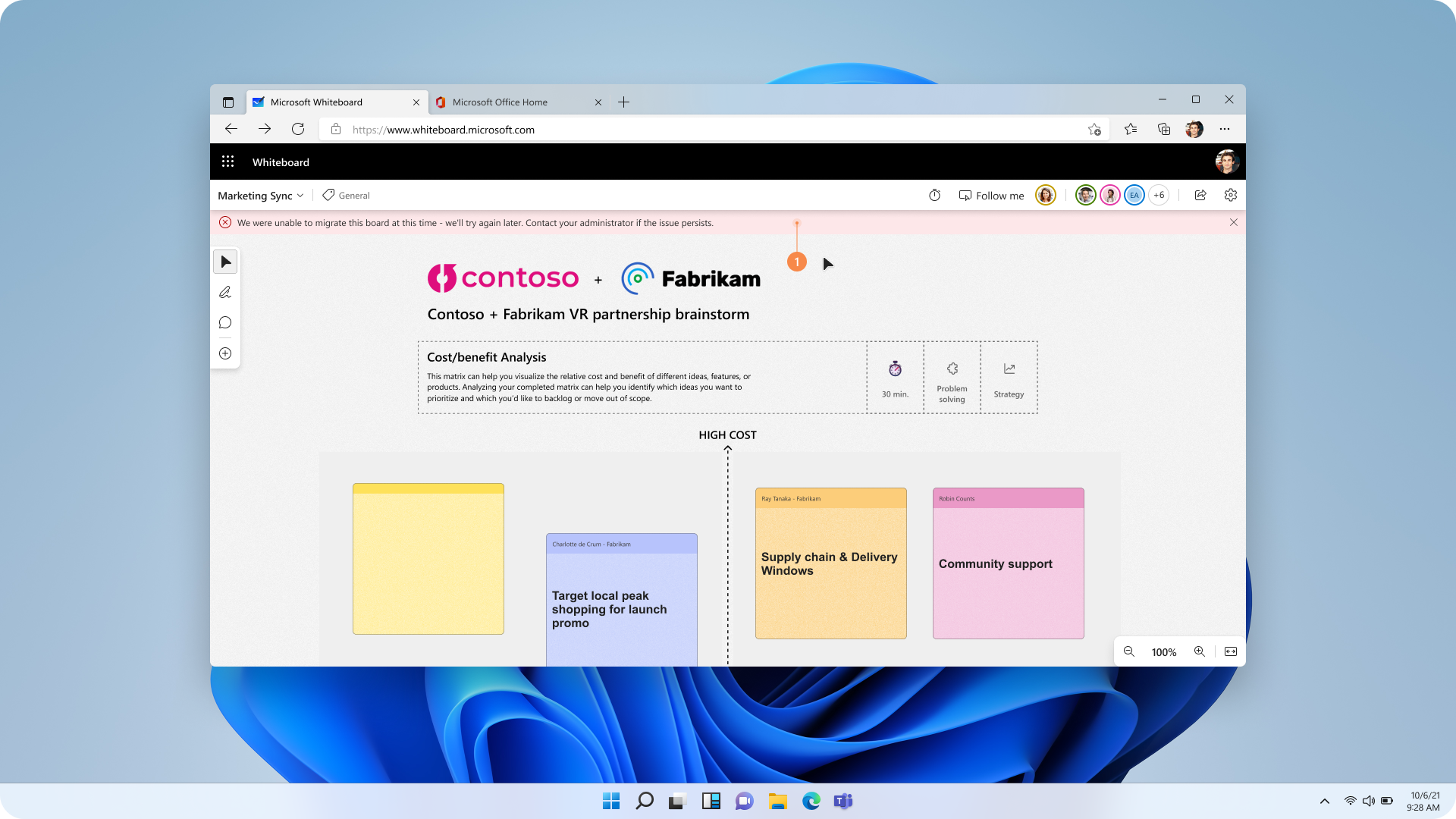
Figure 5: Users will be shown any errors that prevent migration of all Azure Whiteboards as a message at the top of the Whiteboard app. The screenshot shares an example of one such possible error
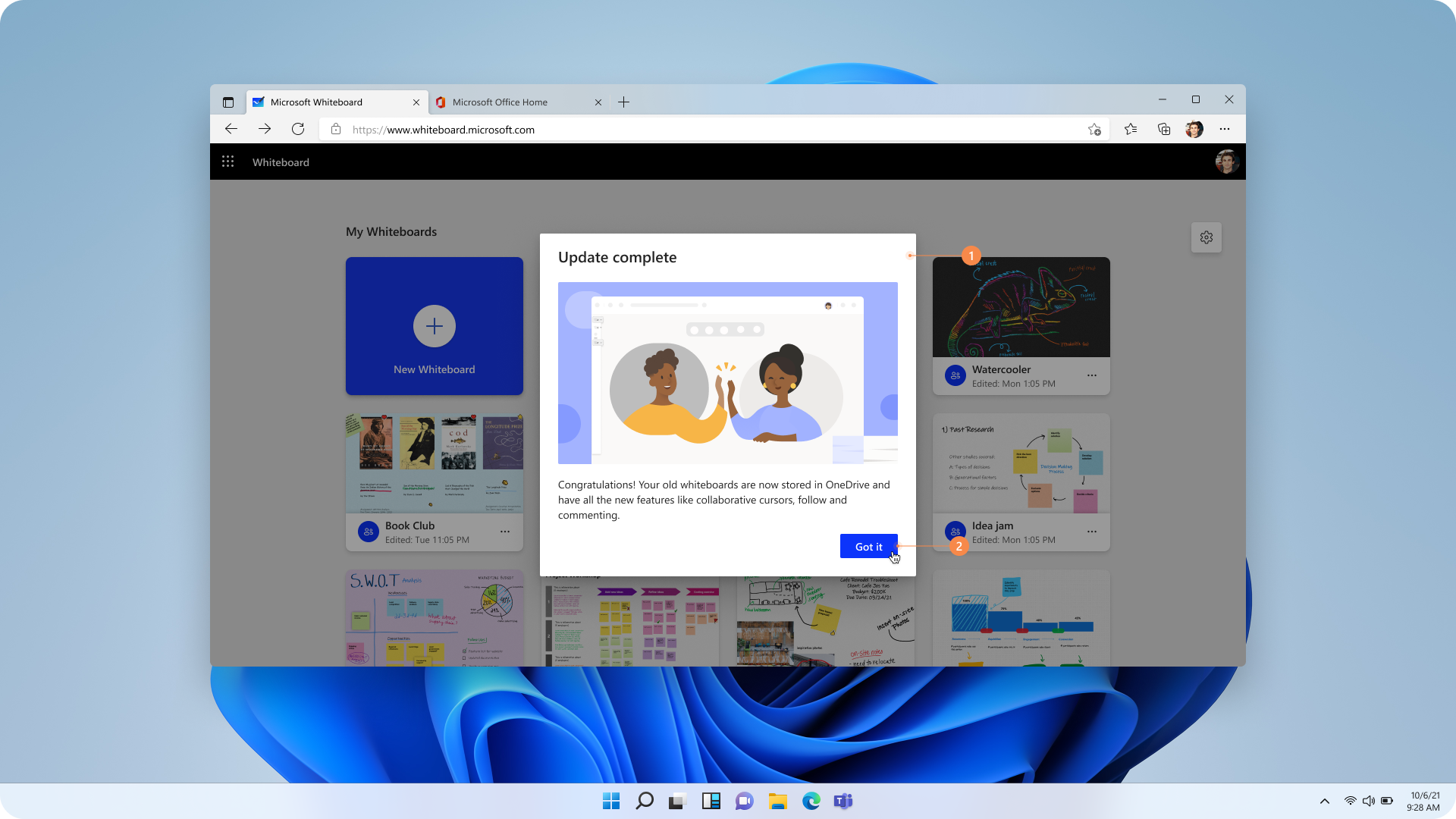
Figure 6: Users will see a success screen on the Whiteboard app when the migration completes for all Azure Whiteboards
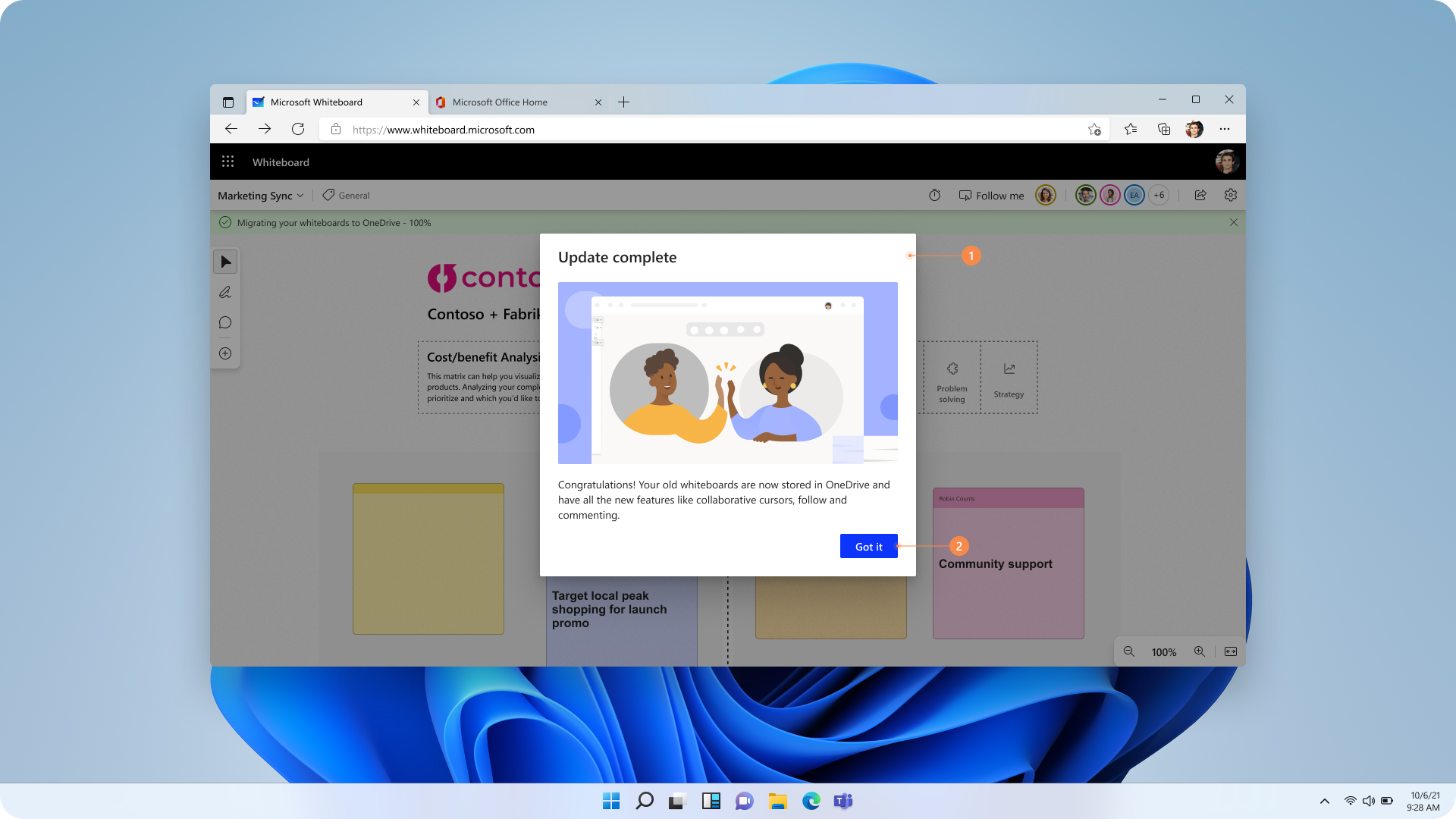
Figure 7: Users will see a success screen on the canvas when the migration completes for all the Azure-based Whiteboards
Rollout plan
The migration will roll out in phases, starting in December 2024, with the goal to complete the process for all users by September 25, 2026.
Migration errors and their fixes
| Error message | Fix or workaround |
|---|---|
| "We were unable to migrate this board at this time - we'll try again later. Contact your administrator if the issue persists." | You can manually restart the migration by clicking “Try Again Now” in the notification banner shown in Figure 6. |
| "Your OneDrive is out of space. Please clear room or contact your organization administrator for assistance." | Create more space in your OneDrive by either purchasing more storage capacity or by deleting some data. |
| "We couldn't migrate this board because we couldn't find your OneDrive. Please ask your administrator for assistance." | Contact your admin to get OneDrive storage assigned to you. |
Frequently asked questions
What is the reason for migrating Whiteboard files from Azure to OneDrive?
Migrating to OneDrive enhances security, allows for better revision history, and enables future feature releases, to name a few benefits. Full list of the differences see - Differences between Azure and OneDrive (work or school) whiteboards - Microsoft Support.
Will I lose any data during the migration?
The migration process is designed to prevent data loss. To avoid losing important content, users must migrate all whiteboards stored in Azure by September 25, 2026.
How will I know when my files are being migrated?
You will receive notifications at the start, during progress, and upon completion of the migration via the platform you are using.
What should I do if some of my Whiteboard files are not migrated?
You’ll see a list of the affected files, along with instructions for manually restarting the migration. Complete the migration by September 25, 2026.
How can I recover my original Azure-based Whiteboard files if needed?
After September 25, 2026, the migration tool will no longer be available, and all whiteboards stored in Azure will become read-only. To retain any whiteboards you still need, select the Settings icon in the upper-right corner, then select Export image before October 16, 2026. On October 16, remaining Azure-based Whiteboards are permanently deleted and cannot be recovered.
What happens to the Azure-based files after successful migration?
All Azure-based copies will become inaccessible to the users after migration completion.
Who can I contact for support during the migration?
Your tenant admins have been equipped with tools to support the migration. For further assistance, you can contact our team at Whiteboard · Community.
What happens if the migration is taking too long and I closed the Whiteboard session?
Migration can continue over multiple Whiteboard sessions. It continues from the point it got paused in the last Whiteboard session.
What if some users have left the organization or are on a long vacation? Will migration not be triggered for them?
Migration can only be triggered by owners of Azure Whiteboards. To ensure that Azure Whiteboards of such tenant users who are dormant get migrated to OneDrive we will soon make available a set of PowerShell cmdlets which will help transfer ownership of Whiteboards from the dormant users to certain active ones, who can then trigger the migration.
We hope this article provides clarity on the Azure to OneDrive migration process. If you have additional questions, please reach out to the Microsoft Whiteboard team for assistance at Whiteboard · Community.