If you are new to touch devices, learning a few gestures will help you take maximum advantage of the touch capabilities.
Moving around in a file
| To... |
Do This... |
Gesture |
| Scroll |
Touch the screen and slide your finger up and down, left and right. |
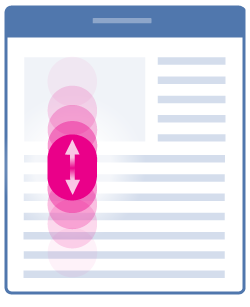
|
| Zoom in |
Spread two fingers apart. |
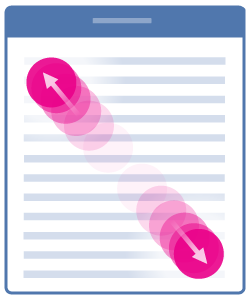
|
| Zoom out |
Pinch two fingers together. |
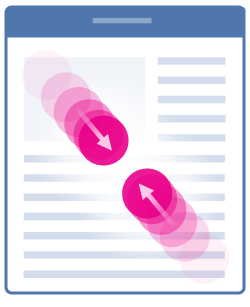
|
Making a selection
| To... |
Do This... |
Gesture |
| Place the cursor |
Tap the location. |

|
| Activate the onscreen keyboard |
Tap anywhere in some text. |
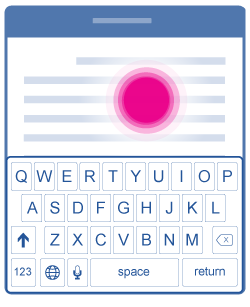
|
| Select and edit text |
Double-tap a word to select. |

|
| Select several words, sentences, paragraphs |
Double-tap the first word and drag the selection handle right, or right and downward, to the last word you want to select. |

|
| Select the contents of a table |
Tap anywhere in the table. |

|
Working with shapes and objects
Word for iPhone doesn't support adding or updating shapes and objects. However, if your document already contains them, you can view them and use touch gestures to move, resize, or rotate them.
| To... |
Do This... |
Gesture |
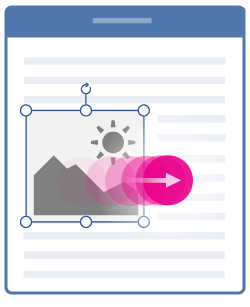
| Move |
Tap the object, hold and drag to the desired location. |
|
| Resize |
Tap the object, then drag any of the resize handles. |

|
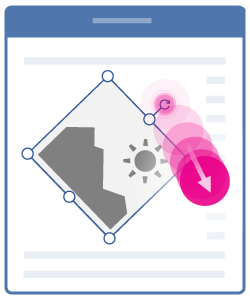
| Rotate |
Tap the object, then hold and drag the rotation handle. |
|
