
Important
In most cases, you no longer need this downloadable add-in. Instead, follow the instructions in Enable the Class Notebook Toolbar in OneNote Desktop.
Note
The downloadable add-in works only with OneNote 2021 and is no longer being updated. If you use OneNote for Microsoft 365, OneNote for the web, or OneNote for Mac, use the built-in Class Notebook toolbar instead.
The Class Notebook toolbar appears automatically in OneNote for the web and you can enable it in settings in OneNote for Windows and Mac.
If you still need to manually download the add-in to enable the Class Notebook Toolbar in OneNote 2021, go to https://www.onenote.com/classnotebook.
For help and support, visit the Class Notebook add-in Support page or file a support ticket at https://aka.ms/EDUSupport.
Features include:
- Quick distribution of new pages, sections, or section groups to students in one or more classes.
- Share a selection of text, image, or ink selection to all students in a class notebook easily.
- Individualized learning with the ability to distribute materials to specific students or student groups.
- Increased efficiency by copying Content Libraries to multiple Class Notebooks.
- Ability to sequentially review student work (assignments, quizzes, and so on) in one or more classes.
- Accessible, convenient Class Notebook app functionality.
- OneNote Class Notebook connection to your Learning Management System (LMS).
Class Notebook
Important
The Class Notebook toolbar appears automatically as a tab in OneNote for the Web. You can enable it in settings in OneNote for Windows and Mac.
When you install the legacy Class Notebook add-in, you get the Class Notebook tab in OneNote 2021.

With Class Notebook, you can:
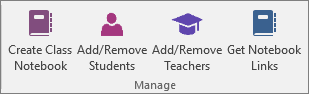
Manage
Each of these buttons launches a browser to access the Class Notebook app in Microsoft 365. Manage each of the functions in Class Notebook online.
Resources

Professional development
Microsoft Learn has free courses on Class and Staff Notebook:
Send feedback
The Send Feedback tab directs you to the feedback portal at aka.ms/edusupport. This portal provides a direct line to support professionals and the product team who listens for feature requests.
Deploying the Class Notebook Add-in
Important
In most cases, this downloadable add-in is no longer required. Instead, educators can follow the instructions here to enable the Class Notebook toolbar without the need to install something separately: Enable the Class Notebook Toolbar in OneNote Desktop.
IT administrators can deploy the Class Notebook Add-in broadly across a school or district. Find instructions on how to do this on the Download Center at https://www.microsoft.com/en-us/download/details.aspx?id=51934.