
Applies to: new Outlook for Windows
All Accounts brings email from multiple accounts into one view. Your mailboxes remain separate, and you can still open each account's inbox. This article applies to new Outlook for Windows, not Outlook on the web or classic Outlook.
Before you start
Connect at least two eligible email accounts to new Outlook. Enable offline access for the accounts you want included under Settings > General > Offline, and allow time for their email to sync. Your organization may manage whether All Accounts is available.
Open and use All Accounts
In the folder pane, expand All Accounts and select Inbox. You can read and reply to email, compose new messages, and use available actions such as Search, Delete, Archive and Mark as read or unread. If an action is unavailable for your selection, open the relevant account's mailbox.
Hide All Accounts
Open More options (...) beside All Accounts in the folder pane, then select Hide all accounts.
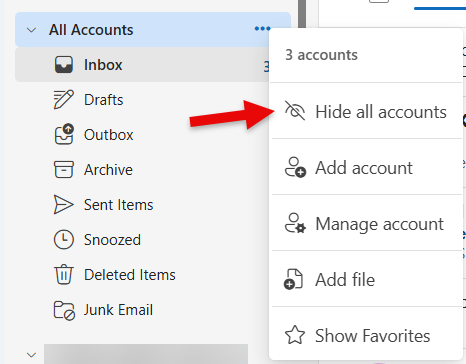
Figure 1. Hide All Accounts from the folder pane.
Show All Accounts again
Open Settings > Mail > Folder pane. Under Show all accounts, select See emails from all your accounts in one place. Save the change if prompted. Clear the checkbox to hide the view again.
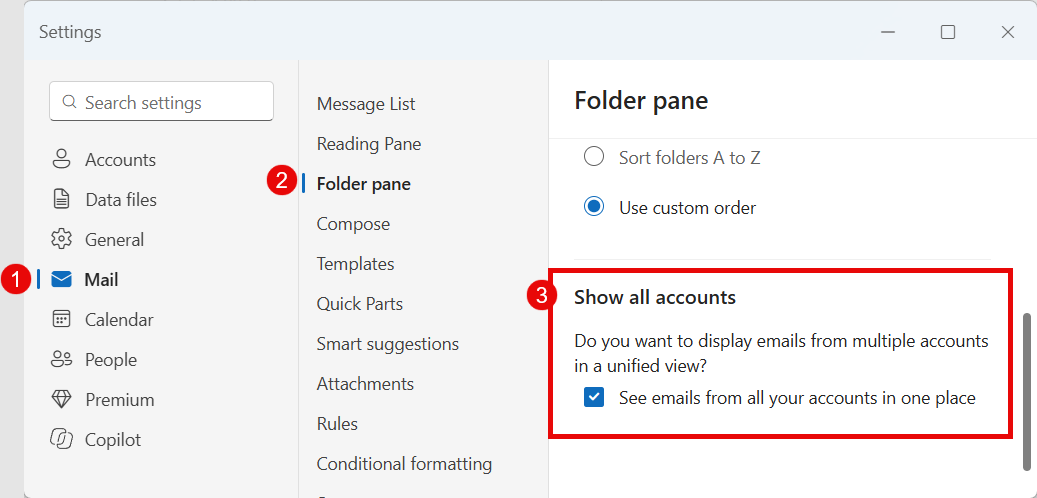
Figure 2. Show or hide All Accounts in Folder pane settings.
Hiding All Accounts does not remove your accounts or delete email. It is not the same as turning off offline access. If the setting is unavailable or managed by your organization, contact your administrator.
Show or hide All Accounts from the View tab
On the ribbon, select View > Folder pane > All accounts. Choose Show to display All Accounts or Hide to remove it from the folder pane.

Figure 3. Show or hide All Accounts from the View tab.
Sort messages
All Accounts supports sorting messages by date only. To sort by sender, subject, size or another criterion, open an individual account's mailbox. This restriction applies to messages in All Accounts, not to the order of folders in the folder pane.
Search and find older email
All Accounts searches email saved locally for participating accounts, not every message in every mailbox. To look for older email, open the relevant mailbox and search while online.
At the end of the search results for your synced window, you will see "Looking for older email?" Select Offline Settings in that message and increase Days of email to save, if a longer period is available. Allow time for the additional email to sync, then search again.

Figure 4. Open Offline Settings from the message at the end of search results.
To change how much email is saved locally, open Settings > General > Offline, select the account if shown, then choose Days of email to save. Choose 7, 30 (default), 90 or 180 days.

Figure 5. Choose how much email to save locally.
A longer period uses more device storage and can take time to sync. Limited free space may reduce the email saved locally. Hiding All Accounts does not by itself change the offline window.
How to work offline in Outlook for Windows
Troubleshooting
I do not see All Accounts
Confirm you are using new Outlook for Windows, have two or more eligible accounts with offline access enabled, and have not hidden the view. Your organization may manage this setting. All Accounts may not yet be available to every eligible user during rollout.
Check the sending account
Before sending a new message or reply, check the From account. If it is not the intended account, correct it before sending.