By default, when you add most account types to Outlook, your messages are displayed in Conversations. A conversation includes all messages in the same thread with the same subject line.
Select a tab option below for the version of Outlook you're using. What version of Outlook do I have?
Note
If the steps under this New Outlook tab match your screen, you may not be using new Outlook for Windows yet. Select Classic Outlook and follow those steps instead.
View messages grouped by conversation in new Outlook
At the top of the page, select Settings
 > Mail >Reading Pane.
In Message organization under How do you want your Message List organized, choose one option based on your preference:
- Select Group messages by conversation to view emails grouped by conversation.
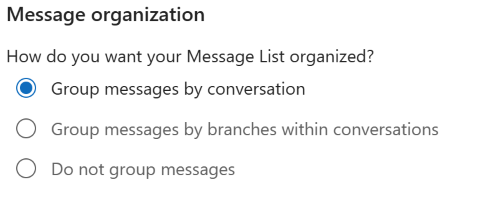
You can also select Group messages by branches within conversations option to view emails as branches within conversations, or select Do not group messages to stop emails from being grouped by conversation.
Use Conversation view in classic Outlook
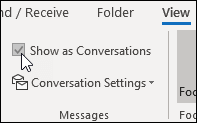
- From any mail folder, such as your inbox, select View > Show as Conversations to toggle Conversation view on or off.
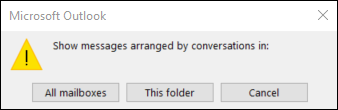
- Select All mailboxes or This folder.
- Conversations that include multiple messages are identified in the message list by a triangular expand/collapse icon
 . Select the icon
to expand or collapse a Conversation.
. Select the icon
to expand or collapse a Conversation.
- Within each Conversation, messages are sorted with the newest message on top. You cannot change this sort order.
- When you receive a new message that’s part of a Conversation, the whole Conversation moves to the top of your message list.
- Any Conversation that includes unread messages has a bold subject and the count of the unread messages appears next to the subject. When you expand the Conversation, any unread messages have a bold heading.
Change Conversation options in classic Outlook
There are several conversation options you can change.
From any email folder, such as your inbox, select View > Conversation Settings
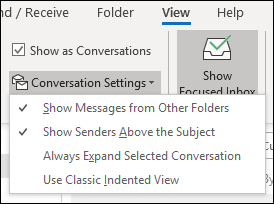
Select any of the available options.
- Show Messages from Other Folders Use this option to display messages in the conversation that have been moved to other folders as well as messages you've sent that are stored in your Sent Items folder.
- Show Senders Above the Subject Selecting this option shows the sender names at the top of the conversation rather than the conversation subject.
- Always Expand Selected Conversation This option applies only to the currently selected conversation. The conversation selected when you check this box will always appear expanded.
- Use Classic Indented View Classic indented view shows messages in the conversation indented based on their position within the conversation.
View messages grouped by conversation in Outlook on the web or Outlook.com
At the top of the page, select Settings
> Mail >Reading Pane.
In Message organization under How do you want your Message List organized, choose an option based on your preference:
- Select Group messages by conversation to view emails grouped by conversation.
You can also select Group messages by branches within conversations option to view emails as branches within conversations, or select Do not group messages to stop emails from being grouped by conversation.
Related articles
View email messages by conversation in Outlook for Mac
