
Last Updated: Aug 2026
A Brand Kit stores the logos, templates, fonts, and colors that keep presentations on brand. As a brand manager, you can control how much freedom Copilot in PowerPoint has when it creates presentations from your branded templates. Two template settings give you that control:
- Strict brand adherence (strict mode) — set for the whole Brand Kit. It controls whether Copilot can create new layouts or must reuse your approved ones.
- Note instructions (note steering) — guide Copilot with plain-language instructions written directly in a slide's notes.
You can use either setting on its own or both together.
Important
Only the Brand Kit owner or brand manager can change these settings. End users who create presentations from your templates can't override them.
Turn on strict brand adherence
Strict brand adherence restricts Copilot to your approved template and slide master layouts. When it's on, Copilot won't add or remove placeholders or invent new layouts. Use it when brand consistency matters more than creative flexibility—for official, customer-facing, or regulated presentations.
| Setting | What Copilot does |
|---|---|
| On | Your template is always followed. Copilot uses only the template and slide master layouts and can't add or remove placeholder content. |
| Off | Your template isn't strictly followed. Copilot may reuse some template layouts or get more creative, while still applying your brand colors, fonts, and assets. |
To turn strict mode on or off:
In your Brand Kit, open Manage Brand Kits.
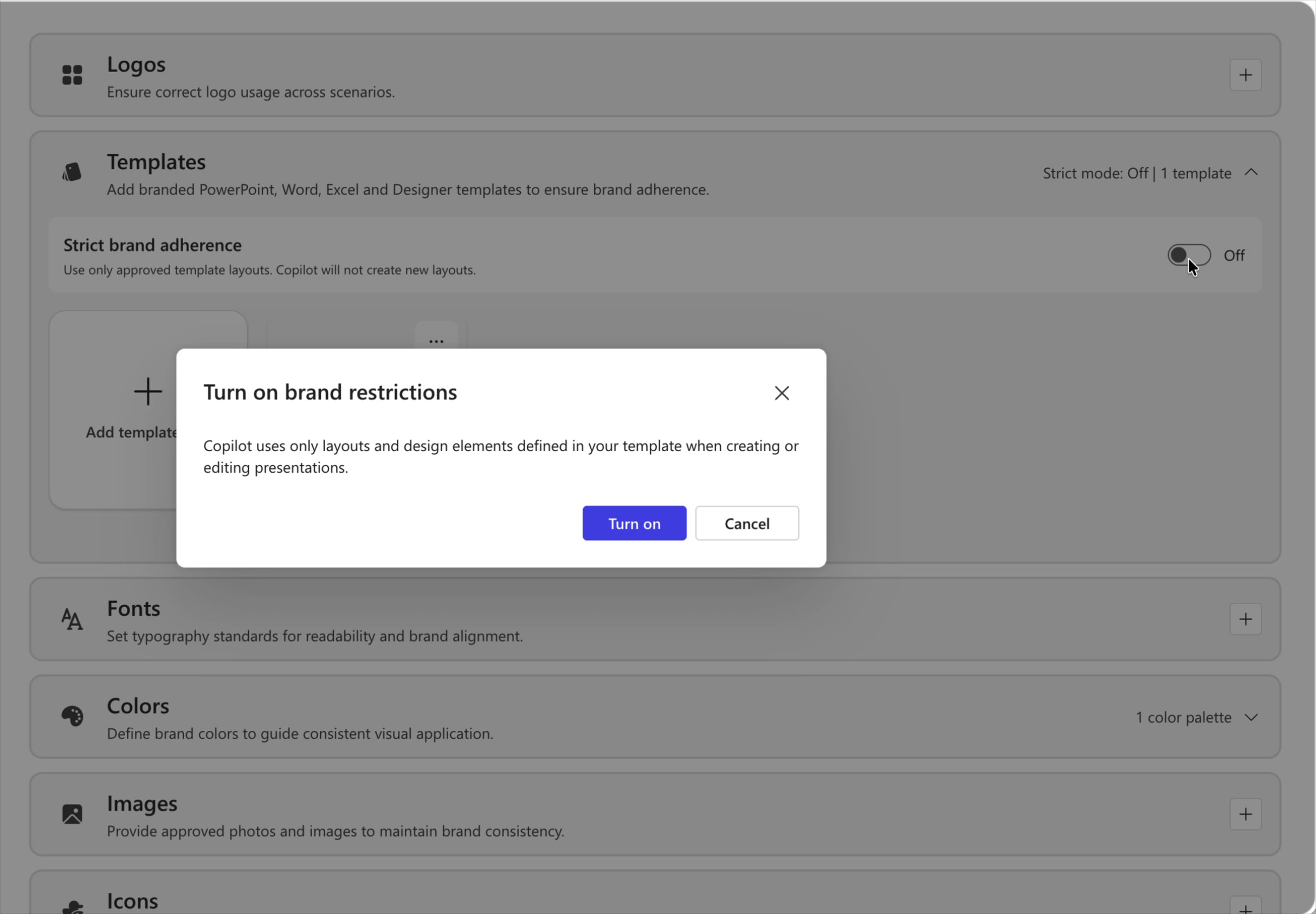
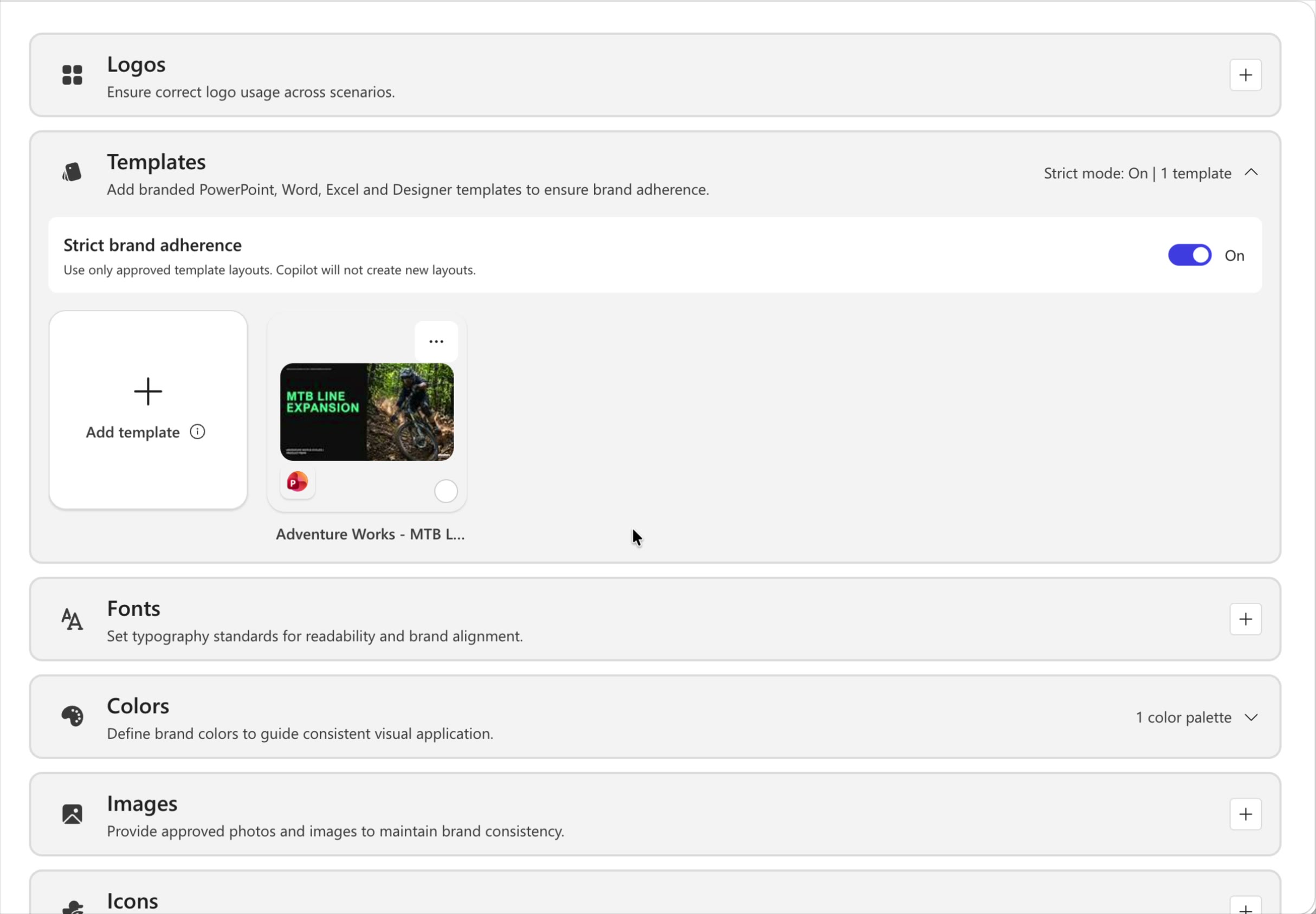
Expand the Templates section. The header shows the current state, for example Strict mode: Off | 1 template.
Turn the Strict brand adherence toggle On or Off. A confirmation dialog appears—select Turn on (or Turn off) to confirm.
Your change saves automatically and applies whenever the Brand Kit is selected—from the create-presentation template picker or the Brand Kit dimension in the Copilot pane.
Guide Copilot with note instructions
Note instructions (note steering) let you give Copilot per-slide guidance written directly in a slide's speaker notes. Copilot reads those notes each time it creates a presentation from your template, so you don't have to repeat the same preferences in every prompt—just embed the rule once. For example, "Always include this cover slide," "Don't modify this slide," or "Keep the text on this slide minimal."
Because the notes live inside your Brand Kit template, every presentation your team generates from it inherits the same guidance—giving you more predictable, on-brand output with less back-and-forth.
Step 1: Add steering instructions to the slide notes
Open your branded template. For each slide you want to control, open the speaker notes and type a plain-language instruction that describes how Copilot should treat that slide. Write the notes in clear, simple language—the same way you'd instruct a colleague.
| Goal | Example note to add |
|---|---|
| Always keep a key slide | "Always include this cover slide." |
| Protect a fixed slide | "Don't modify this slide." |
| Control text density | "Keep the text minimal." |
| Enforce slide order | "Always include this slide last." |
| Lock brand elements | "Do not change the logo, colors, or layout on this slide." |
| Control visuals | "Always use a bar chart, not a pie chart." |
| Set tone | "This slide is for an executive audience—keep it high-level." |
Step 2: Name and upload the template to your Brand Kit
Save your template with a clear, easy-to-identify name (for example, Notes steering – Company Toolkit). A consistent naming convention helps your team pick the right template later.
In your Brand Kit, open the Templates section and select Add template.
Upload your template. It appears in the Templates gallery, ready for your team to use.
Once your notes are part of a template in your Brand Kit, Copilot uses them automatically—no extra setup is needed.
Note
When you upload a template to a Brand Kit, its note instructions are checked to make sure the content is appropriate.
Create a presentation that follows your Brand Kit
After your template is uploaded, anyone on your team can generate on-brand presentations that automatically follow your strict-mode and note-steering settings.
Open PowerPoint and open the Copilot pane.
In the prompt box, select the + button, and then select Select brand.
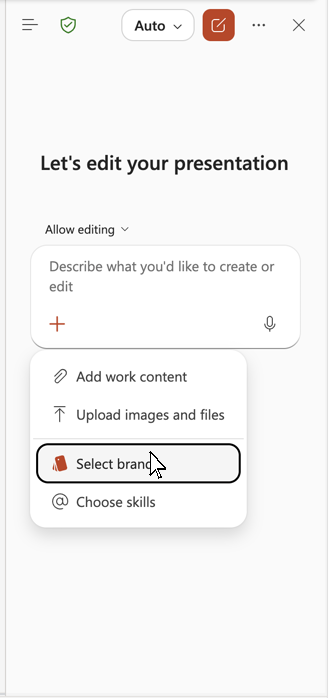
Choose the Brand Kit that contains your template.
Describe the presentation you want—for example, "Create a short presentation about our company history."
Let Copilot generate the presentation. It applies your branded template and follows the instructions in the slide notes (for example, always including the cover slide).
Review that the output reflects your settings: the required slides are present, protected slides are unchanged, text density follows your rules, and any ordering or layout requirements are respected. To refine the behavior, update the notes in your template and upload it again.
Quick reference
Add plain-language instructions to the slide speaker notes in your template.
Name the template clearly and upload it to your Brand Kit under Templates.
(Optional) Turn on Strict brand adherence to keep Copilot to your approved layouts.
In the Copilot pane, select + > Select brand > your Brand Kit.
Prompt Copilot, generate the presentation, and review that your settings were applied.