
Note
Protection against impersonation attempts in Teams meetings is available as part of the public preview program and might undergo further changes before being released publicly. To get access to this and other upcoming features, switch to Teams public preview.
Microsoft Teams helps protect you against impersonation attempts in meetings and calls by warning you when someone might be pretending to be a trusted person or organization.

Respond to impersonation warnings in meetings
Teams can detect potential impersonation attempts involving external people you haven't interacted with before. Depending on whether you're a meeting organizer or participant, warnings may appear before or during a meeting.
Someone joins using a meeting link
When an external person joins your meeting using a link, Teams checks their identity while they wait in the lobby. During verification, Verifying identity... appears next to their name in the People pane.
If Teams detects a potential impersonation attempt, the person appears in the Suspected threats section with a Scam suspected badge and remains in the lobby until you admit or deny them.
- Select Admit and confirm your decision to Admit or Deny to give or deny the person access.
- Select Admit all to admit people who aren't flagged. You'll still need to review and admit or deny flagged people individually.
Someone is added by another participant
If someone adds an external person to your meeting and Teams detects potential impersonation, a Scam suspected badge appears next to their name.
People who have permission to remove participants also receive a notification recommending that they remove the suspicious person unless they're sure of their identity.
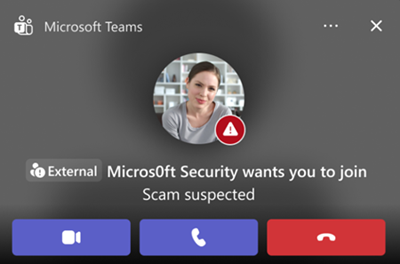
Respond to impersonation warnings in calls
When Teams detects a potential impersonation attempt during an incoming call from outside your organization, a Scam suspected warning appears.
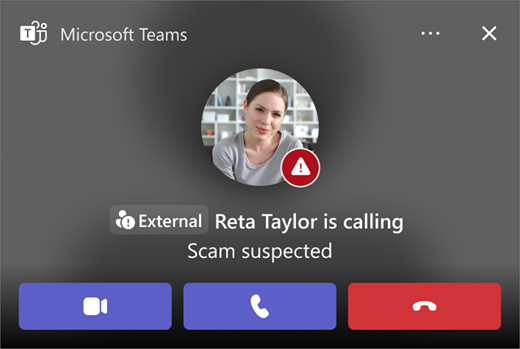
Review the warning before answering or continuing the call. If you've already answered, Teams displays a message recommended that you leave the call unless you're sure of the caller's identity.
If you trust the caller and believe the warning is incorrect, you can continue the call after verifying their identity.
Report a suspicious call
Reporting suspicious calls helps improve detection and protection capabilities. If you suspect that someone is attempting to impersonate another person or organization, you can report the call in Teams.
To report a suspicious call:
- Select Calls
 in Teams.
- In History, find the call.
- Hover over it and select More options
 .
- Select Report call, if available.
- Follow the prompts to submit your report.
Protect yourself from impersonation attempts
Whether you're in a meeting or call, take these precautions when you encounter suspicious activity:
- Verify identities. Check the person's name and organization. If you're unsure, contact them through a trusted communication channel.
- Watch for suspicious requests. Be cautious if someone asks for passwords, verification codes, financial information, or confidential data.
- Be aware of urgency. Treat unexpected requests for immediate payments, account changes, or sensitive information with caution.
- Leave if you're unsure. If you can't verify someone's identity, don't share sensitive information. Decline or leave the meeting or call.
- Report suspicious activity. Follow your organization's security reporting procedures.
Related topics
Prevent spam or phishing attempts from external chats in Microsoft Teams Block, report, or unblock people outside your org in Microsoft Teams