
To enable or disable a touchscreen in Windows, follow these steps:
Right-click on the Start
 menu and select Device Manager.
In the Device Manager window that opens, select the arrow next to Human Interface Devices to expand it.
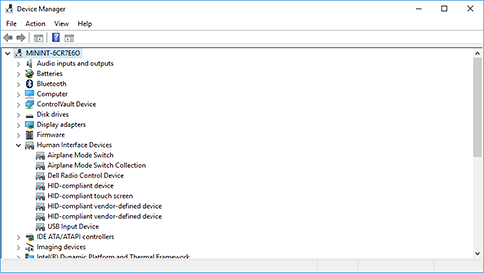
Under Human Interface Devices, right-click on HID-compliant touch screen and select either Enable device or Disable device depending on which action is desired.
If there are multiple HID-compliant touch screen devices listed, repeat the steps for each device.
If the touchscreen isn't working, see What to try if a touchscreen doesn't work in Windows.