

Note
- If you have a work or school (Entra ID) account, Copilot Pages is available to those who have SharePoint or OneDrive storage, including ones without a Microsoft 365 Copilot license.
- If you have a personal Microsoft account, Copilot Pages is available if you're a Microsoft 365 Personal, Family, Premium, or Pro subscriber. Learn more about Microsoft Copilot licensing and Microsoft Copilot plans.
Why use Copilot Pages
Microsoft Copilot Pages help you turn ideas into content that you can edit, refine with Copilot, and collaborate on with others. Microsoft Copilot Pages is a place to turn ideas into content you can edit, refine with Copilot, and share with others. With Copilot Chat and Pages open side by side, you can ask Copilot to add to or update your content, or ask questions about the page to get answers based on what's already there. Pages works well for content that evolves over time and needs to be shared with a team like project briefs, vendor comparisons, meeting notes, or draft communications.
Persistent: Create and edit Pages content with AI assistance, or turn a Copilot response into a durable artifact you can build on and share.
Collaborative: Co-create with colleagues and Copilot in real time. Share Pages with your colleagues and collaborate on live content to stay aligned. Or, chat with Copilot and agents to make updates directly to your Page.
Interactive: Edit Pages content directly or prompt Copilot to keep refining it. Changes are reflected on the page as you go.
Visual: With Pages, you can create more than just text-based content. Use Pages to create, edit, and share interactive charts, visuals, and dashboards.
Where to find Copilot Pages
Sign in to copilot.cloud.microsoft. You should see your name and picture at the bottom left corner of the screen. If you're creating pages for the first time, read on. If you have previously created pages, look for them in the Microsoft Copilot Library.
How to use Copilot Pages
Create a Page from a new chat
From the home screen of Copilot Chat, select the plus button on the left of your chat prompt box, hover over More, and select Draft page or code from the popup menu.
Describe the content you want in your Page, and send the prompt.
Create a Page from a chat response
From a Copilot Chat response, select the ellipses below Copilot's response to view more options, and then select the Edit in Pages button. You can choose to either add the response to an existing or new Page.
In the Page, you will see the chat response opened side by side with Copilot Chat. Select the title directly on the page if you want to rename it.
Edit and format the content directly on the Page, or chat with Copilot to make updates.
Tip
- By explicitly asking Copilot to "Create a page..." or "Generate a page...", it can automatically create a page when it detects you're drafting something durable (e.g. a project brief) and keep refining it with you.
- Add AI tools to your Copilot Chat prompts to get more task-specific and in-depth results from Copilot.
- Select the pencil button
 below Copilot's response to create a page and open it side-by-side with Copilot Chat. Select the title directly on the page if you want to rename it.
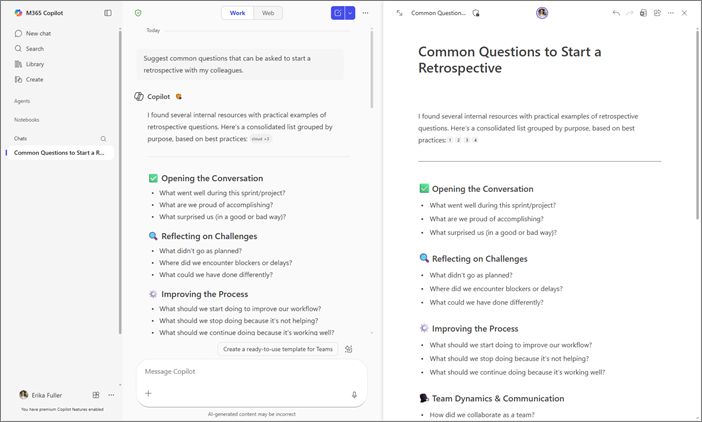
Work side by side with Copilot Chat to refine your content in real time. Using your prompts, Copilot can update existing content or add new content to your page. You can also ask questions about the page, and Copilot will answer based on its current content. At any time, you can make direct edits to the page yourself. Your pages stay available until you choose to delete them. Learn more about page retention in Overview of Loop workspaces storage and permissions. If your organization manages Copilot through IT, your admin may control which AI tools and data sources are available to you in Pages.
Start using Copilot Pages
Here are some examples to inspire you. Copy, paste, and adapt these for your own tasks.
Draft a one page project brief: You want a quick rundown of what a project entails. Ask:
 Create a one-page project brief called [Title]. Use these files as sources: /[filename], /[filename]. Include: purpose, scope, success metrics, timeline table with owners, and risks with mitigations. Write in clear, plain language.
 |
|---|
Compare vendor options: You want a side-by-side comparison of two vendors. Ask:
|
Create a comparison table for [Vendor A] vs [Vendor B] using /[filename]. Columns: capabilities, implementation time, security posture, TCO year 1, references. Add a brief recommendation with assumptions and risks. |
|---|
Draft a customer email: You want teammates to help refine a draft in reference to a support ticket. Ask:
|
Draft a customer-ready email replying to case [number]. Keep the tone friendly and professional. Summarize the issue, what we did, and the next step with expected timeline. Add a short FAQ section below for internal review. |
|---|
More ways to work with Copilot Pages
How Microsoft Copilot Pages works
Draft content with Microsoft Copilot Chat and Copilot Pages