

Create a video with the Microsoft Copilot app on almost any topic, then edit and refine it to match your needs.
Note
For users without a Microsoft Copilot license, quality and performance may vary depending on the service availability and may vary throughout the day. If the service isn't available, Copilot notifies you. It won't interrupt any task in progress. For more details, see How Copilot Chat works with and without a Microsoft Copilot license.
Note
Clipchamp must be enabled for your organization in order to see and use video creation in Copilot Create.
How to create a video with the Microsoft Copilot app
Prerequisites
Make sure Clipchamp is enabled for your organization. Only users in organizations where Clipchamp is enabled by their admin can see the Create a video option in Copilot Create.
Create a video
Access the Create section of Copilot using one of the following methods:
- Navigate to What do you want to create? via a web browser.
- Navigate to Copilot via a web browser, select the Apps and more icon in the top left of the window, and then select the Create icon.
- Open the Copilot app, select the Apps and more icon in the top left of the window, and then select the Create icon.
If prompted, sign in with an account that has a valid Microsoft Copilot subscription to access the Create section.
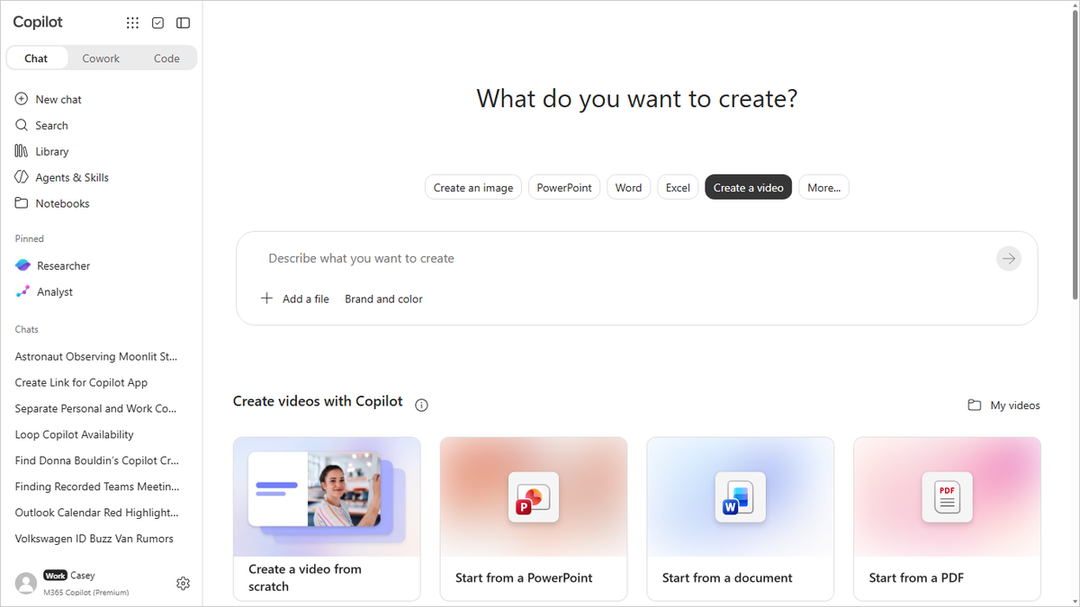
In the What do you want to create? window, select Create a video. If you don't see this option, select More... and then select Video in the menu that appears.
If desired, select a template from the Create a videos with Copilot, Create a video from scratch, or Create a video from a presentation sections. If you select a template, a prompt based on the selected template appears in the Describe what you want to create prompt box. You can use this prompt as-is, or make changes based on your needs.
If you're not using a template, enter a description of the video you'd like in the Describe what you want to create prompt box. For best results, be as specific as possible.
If desired, select + Add a file at the bottom left of the prompt box to add a file to help Copilot understand what your video should include. For example, select a PowerPoint file to create a video from an existing PowerPoint presentation.
If desired, select Brand and color to apply a brand kit and a color palette from your organization to the video. Brand kits are only available if your organization has set them up. For more information, see Create and manage official Brand kits in the Microsoft Copilot app.
Select the right arrow ➜ on the right hand side of the prompt box to start the video creation process. Copilot generates your video based on the description and settings you provided.
Once the video is generated, you'll be taken to the video preview screen where you can watch the video and view the Transcript.
If you're happy with the video, you can download it by selecting Export & share. Otherwise, you can make changes by selecting Transform and entering what you want in the Transform with AI prompt box. You can also use the other options under Transform such as Adjust to really make the video your own by:
- Changing the music.
- Changing the narrator's voice, for example, from masculine to feminine.
- Selecting a brand kit and a color palette from your organization. Brand kits are only available if your organization has set them up.
You can continue refining your video until it meets your expectations.
If your video needs bigger changes, you can use Clipchamp, the Microsoft online video editor. To open the video in Clipchamp, select Open in Clipchamp from the top of the screen. For more information on Clipchamp, see How to edit a video in Clipchamp