

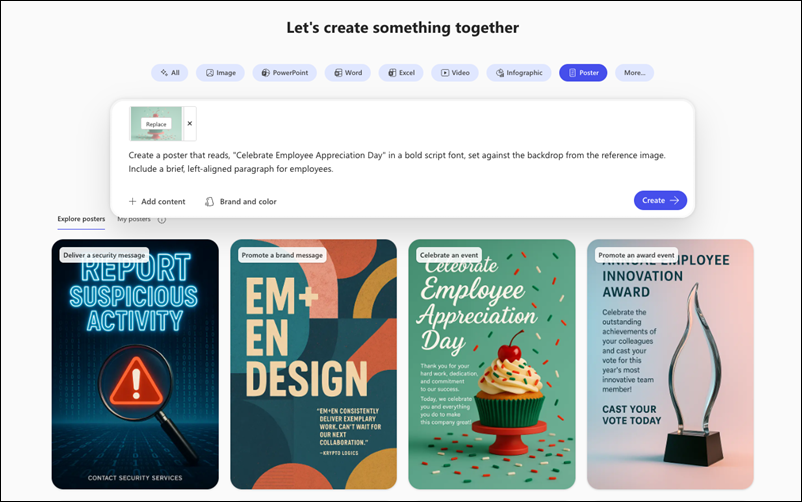
Learn how to design a poster with the Microsoft Copilot app. Start with a template or prompt, apply brand colors, and edit and download the AI-generated design.
Note
To use this feature, you need an eligible Microsoft 365 subscription. If you're subscribed to Microsoft 365 Personal, Family, Premium, or Pro, some Copilot capabilities may have usage limits and are subject to change over time. Learn more about Copilot features and AI limits in Microsoft 365 Personal, Family, Premium, and Pro subscriptions.
Note
For users without a Microsoft Copilot license, quality and performance depend on service availability and can vary throughout the day. If the service isn't available, Copilot notifies you. It doesn't interrupt any task in progress. For more details, see How Copilot Chat works with and without a Microsoft Copilot license.
Create a poster
Access the Create section of Copilot using one of the following methods:
- Go to What do you want to create? in a web browser.
- Go to Copilot in a web browser, select the Apps and more icon in the top left of the window, and then select the Create icon.
- Open the Copilot app, select the Apps and more icon in the top left of the window, and then select the Create icon.
If prompted, sign in with an account that has a valid Microsoft Copilot subscription to access the Create section.
In the What do you want to create? window, select Design a poster. If you don't see this option, select More... and then select Poster in the menu that appears.
If desired, select a template from the Explore posters section. If you select a template, a prompt based on the selected template appears in the Describe the poster you want to create prompt box. You can use this prompt as-is, or make changes based on your needs.
If you're not using a template, describe the poster you want in the Describe the poster you want to create prompt box. Make your description as detailed as possible to get the best results.
If you have existing content that you want in the poster, select + Add content at the bottom left of the prompt box.
If desired, select Color to pick from color palettes to set the basic look and feel of your poster.
For work and school accounts, Brand and color is available instead of Color. Use Brand and color to apply a brand kit and a color palette from your organization to the poster. Brand kits are only available if your organization sets them up. For more information, see Create and manage official Brand kits in the Microsoft Copilot app.
Select the right arrow ➜ on the right hand side of the prompt box to start the poster creation process. Copilot generates your poster based on the description and settings you provided.
If you're happy with the poster, you can copy it or download it using Save and copy. Otherwise, you can make changes by entering what you want in the Transform with AI prompt box. You can also make changes to the Color/Brand and color. Further refinements can be made using the tools along the right such as Edit and Text to really make the poster your own. You can continue refining your poster until it meets your expectations.
Tip