

Agents in SharePoint are available from the Plugins store. Your site owner or page owner selects agents that are relevant to the work you do on their site and places them on the page so you can interact with them.
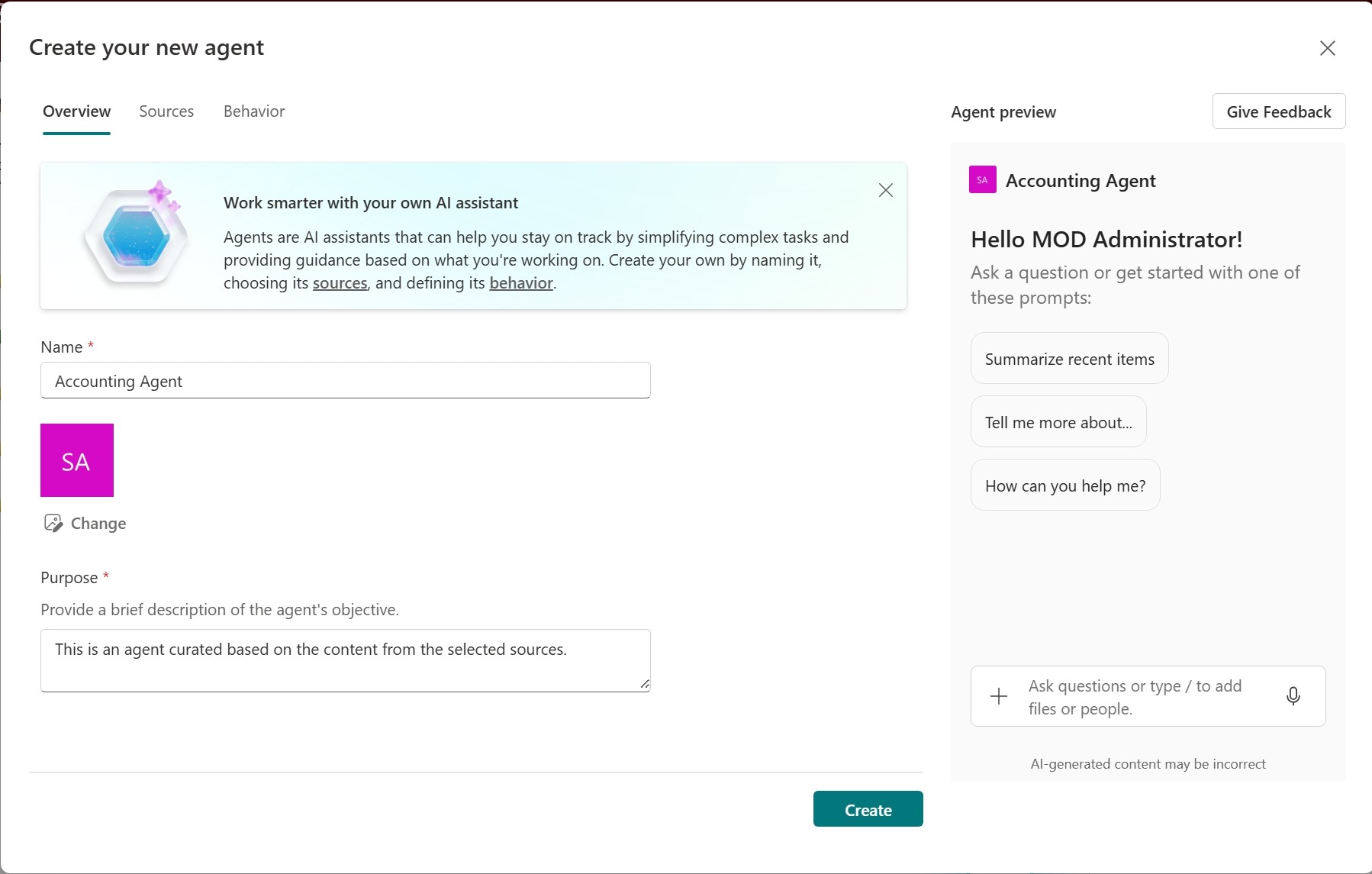
You can also create your own agent by naming it, choosing its sources, and defining its behavior. You can build an agent that's tailored to your team's needs and content, and share it with your teammates to use in Teams or Copilot app.
Important
This article explains how to create an agent in the .agent file format.
Upgrades are coming mid-November 2026 to agents in SharePoint. Learn more in Upgrade agents in SharePoint.
Before you begin
To create an agent, you must:
Have a Microsoft Copilot license, or belong to an organization that has pay-as-you-go billing enabled for agents in SharePoint.
Have edit permissions on the SharePoint site.
To change an existing agent instead, see Edit an agent in SharePoint.
Where you can create an agent in SharePoint
After signing in to your SharePoint site with edit permissions, you can create your own agent from:
- The command bar of a document library or list
- The context menu for selected files in a document library
Note
The agent only answers questions by using information from sites, pages, and files that you already have access to and that are included as the agent's sources. To get information from all the sources you want the agent to use, you might need to update permissions for yourself or for the people you want to share the agent with.
Create an agent from the command bar of a document library or a list
Open the document library or list that you want the agent to use.
On the command bar, select Copilot > Create an agent.
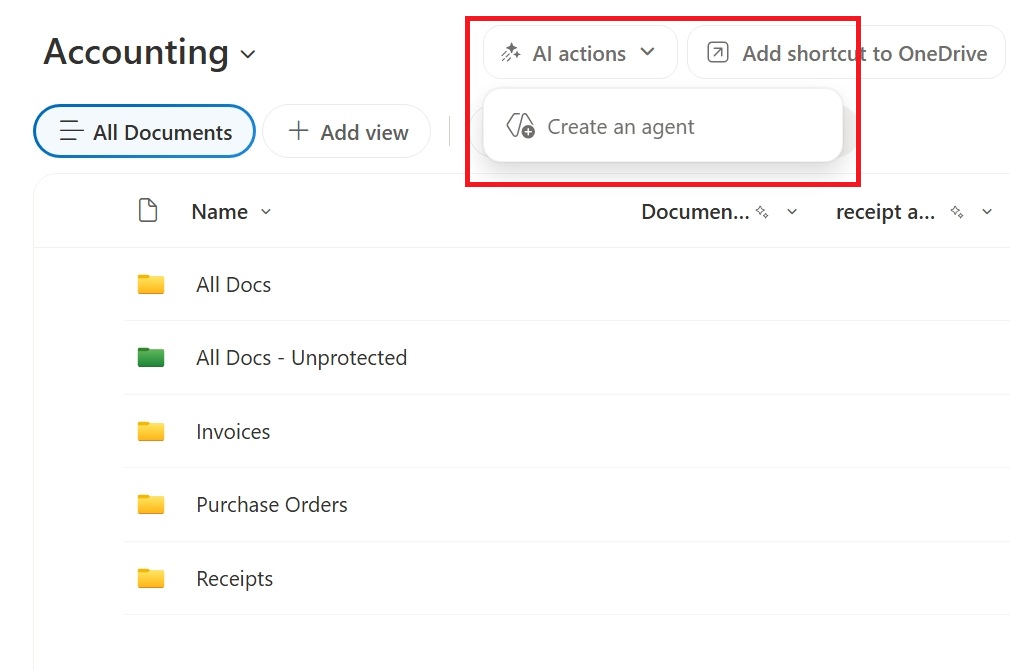
The agent initially uses the supported content in that library or list as its scope.
Create an agent from the context menu of selected files
In a document library, select the files or folders that you want the agent to use.
Right-click the selection, or select the ellipsis next to one of the selected items.
Select Create an agent.
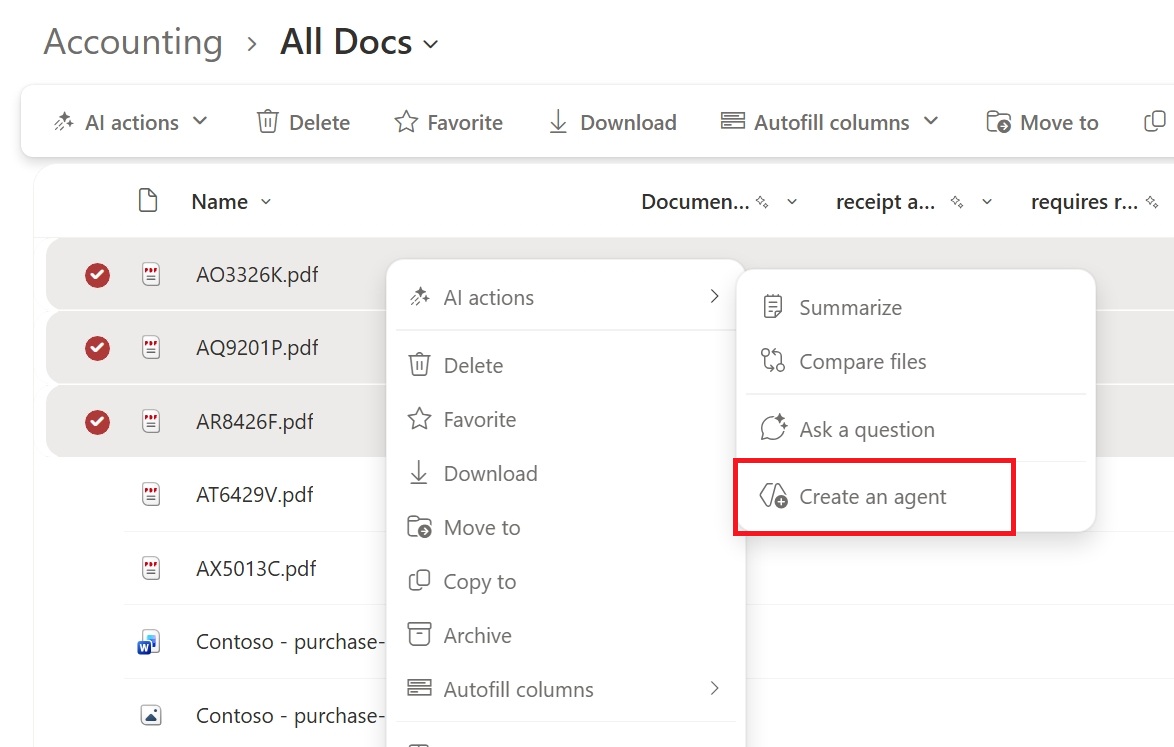
The agent builder opens with the selected content as the initial scope. This is the Microsoft 365 Copilot Agent Builder that you can use to build out this agent.
Find the agent
You can find all the agents you created in the Plugin store.
You can edit the agent after you create it to:
- Customizing its branding and purpose
- Adding or removing which sites, pages, and files your agent should include as knowledge sources beyond the current SharePoint site
- Refine the agent's behavior by writing customized prompts tailored to the purpose and scope of the agent
FAQ and data handling
To learn more about agents, see Frequently asked questions about agents in SharePoint.
For more information on how Microsoft Copilot works, see Data, Privacy, and Security for Microsoft Copilot.