
Save time creating and editing templates with AI assistance.
What is the AI assistant for templates?
The AI assistant helps you create new templates or edit templates more efficiently. To create new templates, describe the template you want using your own words and Dragon Copilot generates the template structure for you. You can also provide an existing template or sample content. To edit templates, describe the edits you want to make and AI builds them for you.
Important
If you provide the AI assistant with sample content, ensure there's no protected health information (PHI) or other confidential information present.
How to create a template using AI assistance
You can create a template by going to settings or by using a voice command.
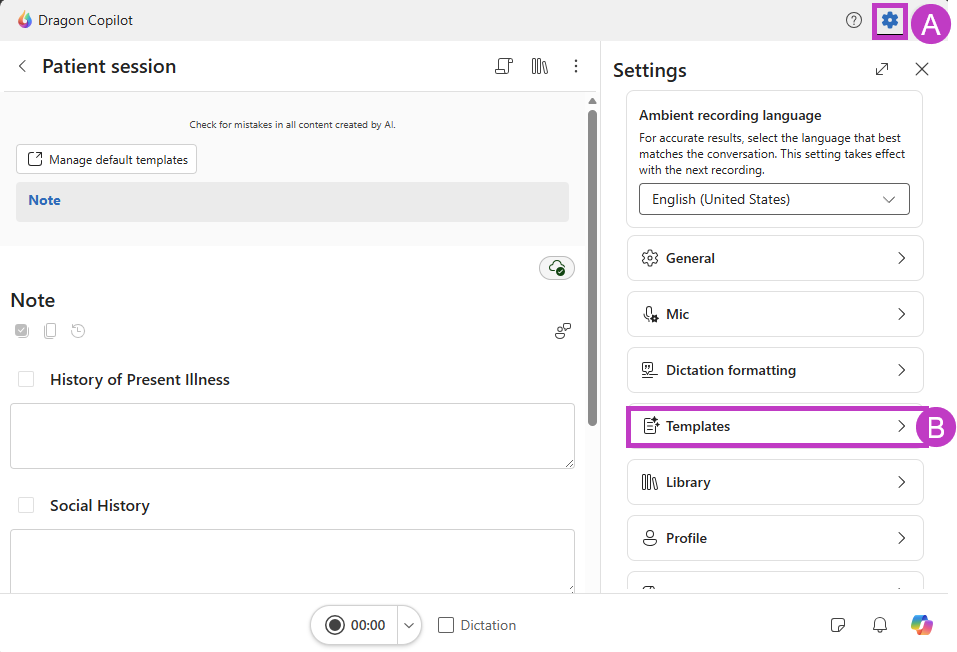
To create a template in settings:
Go to (A) Settings
 > (B) Templates.
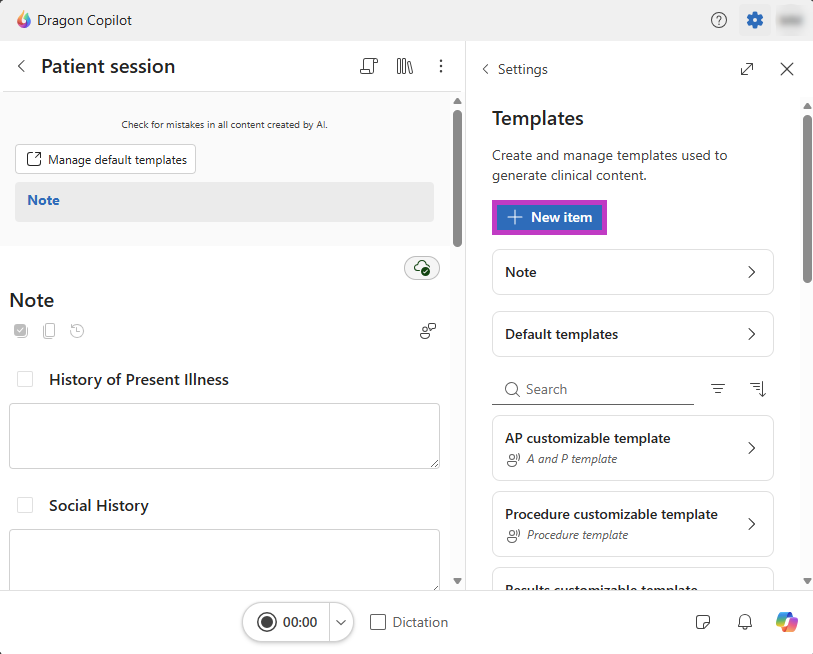
Select New item.
Tip
Use a voice command to open Templates or start creating a new template.
Tip
Select the expand icon  to expand the note style panel and work with settings in a larger view. Select the icon
 again to make the view smaller.
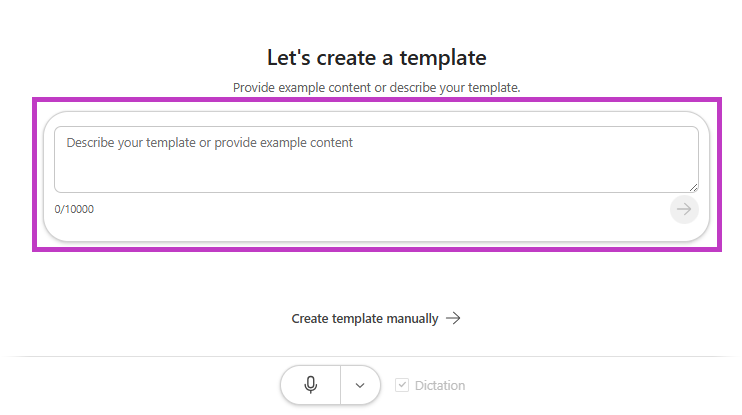
- In the new template screen, type or dictate your request into the prompt box. Describe what you want the template to look like, and what it should include. For example, you might type or dictate “Create a cardiology referral letter template including patient information from the encounter and my credential information” or “Create an HPI template following this example: insert example of HPI”. You can also provide sample content such as an existing note section template, document, or letter.
Important
If you provide the AI assistant with sample content, ensure there's no protected health information (PHI) or other confidential information present.
Select Send
 .
The AI assistant processes your request. When the request finishes, the AI creates the template, fills out the other fields such as name and description, and automatically generates the preview based on the template and mock data.
Note
As the AI works, you see status updates, such as Configure along with a streaming bar. These updates let you know that Dragon Copilot is actively working on generating the template.
- Review the output including the Preview. Edit the template as needed. When the template has the desired output, select Save.
Tip
If the Dragon Copilot AI assistant minimizes, select the chat icon  to open the assistant again.
How to edit templates using AI assistance
The AI assistant can help you make edits to your templates.
Open the template you want to edit.
Select the AI assistant
.
- In natural language, type or dictate into the text field the edits you want made.
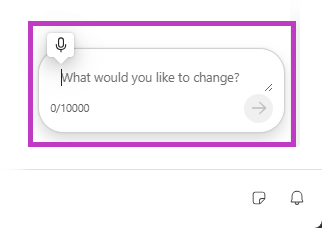
AI regenerates the template content and refreshes the preview automatically.
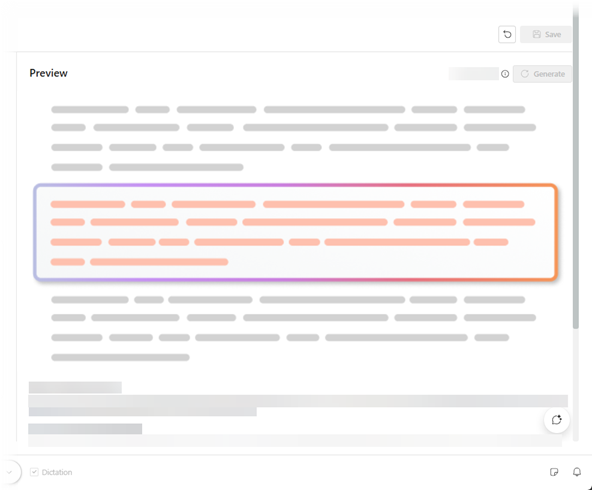
Review the Preview that's automatically generated using mock data to see how your template output might look.
Note
If Dragon Copilot is in narrow view, select the Configure and Preview tabs for each section.
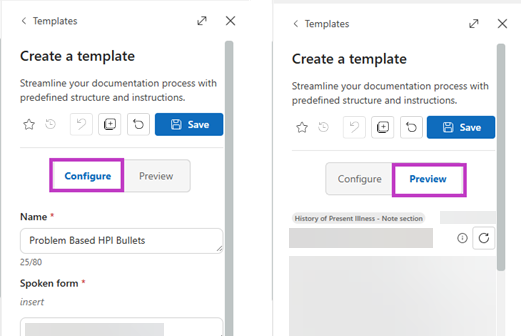
- Continue to refine the template as needed and then select Save.
Tip
Select Undo  to undo the latest change you applied manually or by using AI to remove an unwanted update. You can use Undo even after you save the update or use the Restore to default option. Select the version icon
 to view your template revision history.
Use feedback to update your note or template
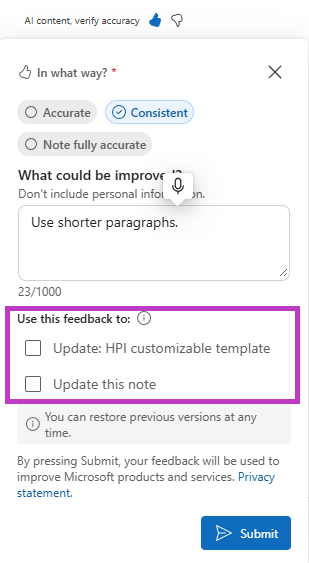
When you provide feedback on a note that uses a custom template, Dragon Copilot can use your feedback to update your documentation and adapt the custom template to your preferences.
Provide feedback describing how you'd like the content to change. For example:
- Remove any allergies mentioned in the HPI
- The HPI needs to start with a mention of the reason for visit
- I want the physical exam to have the General section at the top
- Each diagnosis in the A&P needs to be bulleted
After you provide feedback, select the appropriate checkboxes to update your template and note with Dragon Copilot.
Tips for best results from the AI assistant
Be specific and use action words. When you enter the description into the AI assistant, be specific and use action words that ask it to build something such as draft or create. If you're building a note section template, include the name of the section in the description, such as HPI or allergies.
Give Dragon Copilot an example. If you use a template or want to use a template, copy and paste the example into the AI assistant. For example, “Create a template that follows this example” and paste the text. Ensure the example doesn't contain protected health information or other confidential information.
Be descriptive but aware of the character limit. Templates and text fields are limited to 10,000 characters.
Describe the purpose of the template. Include details about the workflow, note type, note section, specialty, or use case so AI can generate more relevant content and structure. Let AI know if you want the content organized with headings, bullet points, or other styles.
Tell AI what sections to include and your style preferences. Specify any headings, note sections, or content that should be included to help guide the generated template.
Use follow-up prompts to refine the template. After generating a template, ask the AI assistant to add, remove, reorganize, or rewrite content until it meets your needs.
Related topics
Use default note section templates