
Use the library to quickly insert, edit, or create content while documenting.
Use voice commands with the Library
Use voice commands to open and close the Library, navigate to Library sections, and create Library items, including texts, prompts, vocabulary entries, templates, and workflows. You can also create some Library items from text you highlight in Dragon Copilot. In Dragon Copilot Desktop, you can also use text highlighted in a supported third-party app.
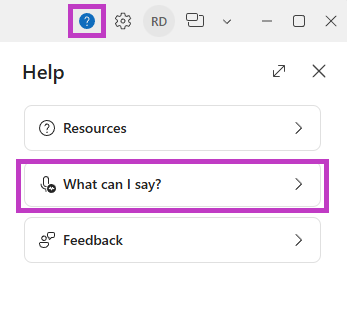
Go to Help and feedback  > What can I say for a list of available voice commands.
Library items
The library includes:
- Texts: Insert predefined blocks of text, such as discharge instructions or normal findings.
- Prompts: Give instructions to the AI to summarize, edit, or create content. Use built-in prompts or create your own.
- Templates: Combine texts and prompts to organize and format note content. Use default templates or customize them.
- Vocabulary: Insert words or phrases using your voice.
- Workflows (desktop only): Use a voice command to complete multiple steps at once.
Open the library
From Settings
- Select Settings
 .
- Select Library
 .
From a patient page
Select the library icon
.To add or edit items, select Manage library
 .
Open the library while typing
To open the library in a supported text field, type a forward slash (/).
Use this feature in:
- Note sections
- Memos
- Freeform text fields
The items shown in the menu depend on where you are when you type a forward slash (/).
To open the full library, select Manage library
.
Library icons
Icons show where items come from and how you can use them.
 Dragon Copilot icon: Built-in items. These items are read-only, except for templates.
 Shared icon: Items created by your organization. These items are read-only.
 Star icon: Items marked as favorites.
Related topics
Duplicate library items in Dragon Copilot
Use default note section templates