Here's a focused list of voice commands you can use while dictating in Dragon Copilot. The commands are grouped by functional area.
Note
The features and functionality available to you might vary based on your organization's configuration, language settings, and whether you're using the web, mobile, or desktop app.
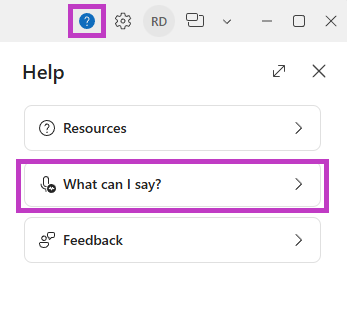
Access a full, searchable list of available commands in the Dragon Copilot application.
- Select Help and feedback
 .
- Select What can I say?
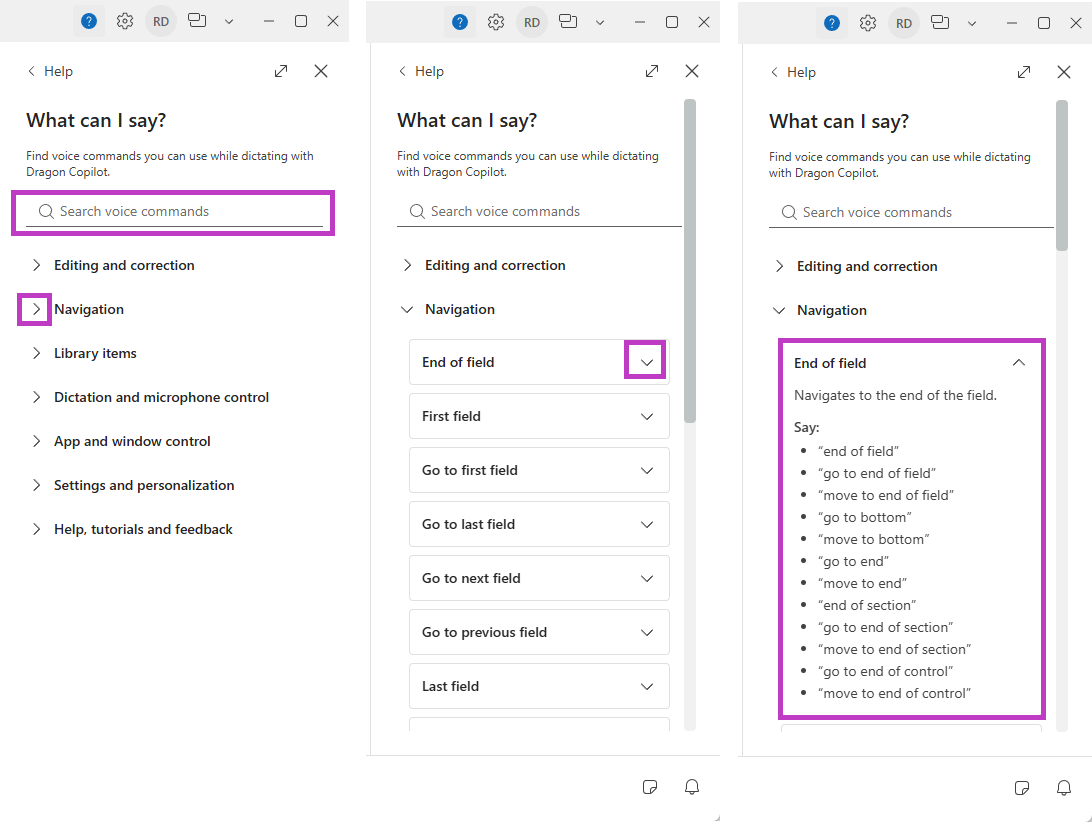
Use the search field to find a command, or expand a section to browse available commands. Select the arrow next to a command to view its description and the phrases you can say.
Choose a language
Recording
- Start ambient recording activates the ambient recording microphone.
- Microphone off deactivates the voice input (dictation) microphone.
- Stop listening deactivates the voice input (dictation) microphone.
Dictation
- New paragraph moves the cursor down two lines.
- New line moves the cursor down one line.
Editing
- Scratch that | Delete that deletes the last word or phrase you spoke.
- Undo that undoes the previous operation.
- Redo that redoes the last 'undo that' operation.
- Insert before | after [text] puts the cursor focus before or after the specified text.
- Cap that formats the selected text or the last thing you said with initial caps.
- Accept default accepts the default value of the auto-text field where you are and removes field delimiters in that field.
- Accept defaults accepts the default value of all auto-text fields and removes field delimiters in all fields.
- Paste that pastes the contents of the clipboard.
- Copy that copies the selection to the clipboard.
Selection commands
- Select again is used when there are multiple instances of the same word. The "selection" moves backward from the cursor position.
- Select [text] selects the specified text.
- Select [text] to [text] selects the specified text.
- Select all selects all the text in the dictation field.
- Unselect that | Deselect that cancels the selection.
- Select the first paragraph
- Select (the) last sentence
- Select (the) next sentence
- Select the previous word
- Select this word
Navigation commands
Move across sections commands
- (Move to | Go to) Previous | Next (field | section) moves the cursor to the previous or next field or section within the note.
Move within a field or section commands
- Go to beginning of sentence | paragraph navigates to the beginning of the sentence or paragraph.
- Go to end of sentence | paragraph navigates to the end of the sentence or paragraph.
- Go | move to start of (field | section) moves the cursor to the beginning of the field or section, based on the current position of the cursor.
- Go | move to top moves the cursor to the beginning of the section, based on the current position of the cursor.
- Go | move to bottom moves the cursor to the bottom of the section, based on the current position of the cursor.
Application navigation commands
Open and close settings
- go to settings | open settings | show settings opens settings.
- close settings closes settings.
Navigate within settings
- go to microphone settings | go to mic settings | go to mike settings | open microphone settings | open mic settings | open mike settings | show microphone settings | show mic settings | show mike settings navigates to microphone settings.
- go to general settings | open general settings | show general settings navigates to general settings.
Open help and resources
- go to help | open help | show help opens help.
- go to resources | open resources | show resources opens resources.
Microsoft commands (Dragon Copilot desktop only)
- launch Microsoft Outlook | open Microsoft Outlook | show Microsoft Outlook | start Microsoft Outlook opens Microsoft Outlook.
- launch Microsoft Word | open Microsoft Word | show Microsoft Word | start Microsoft Word opens Microsoft Word.
Word commands (Dragon Copilot desktop only)
- new document | create new document | open new document opens a new Word document.
- save document | save changes | save document changes saves the Word document that has the focus.
Outlook commands (Dragon Copilot desktop only)
- create email | create mail | compose email | compose mail creates a new email in Outlook.
- new meeting | create meeting | schedule meeting | book meeting creates a new meeting in Outlook.
- reply to email | reply to mail replies to the email that has the focus in Outlook.
Transfer (Dragon Copilot desktop only)
- Transfer all transfers the content of all non-blank sections to the current cursor location.
- Transfer selected transfers the content of the selected sections to the current cursor location.
Anchoring (Dragon Copilot desktop only)
- Anchor (dictation | speech focus) | Send text here anchors the speech focus to an app; the dictation results are written into this app even if you navigate to another app.
- Release (dictation | speech focus) releases the speech focus from an app.
Other
- Open Dragon | show Dragon restores the app to the foreground if it's minimized or in the background.
- What can I say opens the list of available voice commands.
Recording
- démarrer l'enregistrement ambiant activates the ambient recording microphone.
- éteindre le microphone deactivates the voice input (dictation) microphone.
- arrêter d'écouter deactivates the voice input (dictation) microphone.
Dictation
- Nouveau paragraph moves the cursor down two lines.
- À la ligne moves the cursor down one line.
Editing
- Effacer ça | Supprimer ça deletes the last word or phrase spoken.
- Annuler ça undoes the previous operation.
- répéter ça redoes the last ‘undo that’ operation.
- Insérer (avant | après) [texte] puts the cursor focus before or after the specified text.
- ceci en maj / ceci en majuscule / en majuscule formats the selected text or the last thing you said with initial caps.
- Variable complète accepts the default value of the auto-text field where you are and removes field delimiters in that field.
- accepter les valeurs par défaut accepts the default value of all auto-text fields and removes field delimiters in all fields.
- coller ça pastes the contents of the clipboard.
- copier ça copies the selection to the clipboard.
Selection commands
- Sélectionnez à nouveau is used when there are multiple instances of the same word. The "selection" moves backward from the cursor position.
- Sélectionnez [texte] selects the specified text.
- Sélectionnez de [texte] jusqu'à [texte] selects the specified text.
- tout Sélectionner selects all the text in the dictation field.
- (désélectionnez | sélectionnez) ça cancels the selection.
- sélectionner le premier paragraphe
- sélectionner la derniere phrase
- sélectionner la phrase suivante
- sélectionner le mot précédent
- sélectionner ce mot
Navigation commands
Move across sections commands
- [aller | accéder] au champ (précédent | suivant) moves the cursor to the previous or next field within the note.
- [aller | accéder] à la section (précédente | suivante) moves the cursor to the previous or next section within the note.
Move within a field or section commands
- (aller | accéder) au début (de la phrase | du paragraphe) navigates to the beginning of the sentence or paragraph.
- (aller | accéder) à la fin (de la phrase | du paragraphe) navigates to the end of the sentence or paragraph.
- (aller | accéder) au début du champ | de la section moves the cursor to the beginning of the field or section, based on the current position of the cursor.
Application navigation commands
Open and close settings
- ouvrir les paramètres | afficher les paramètres | accéder aux paramètres | aller aux paramètres ouvre les paramètres.
- fermer les paramètres ferme les paramètres.
Navigate within settings
- ouvrir les paramètres du microphone | afficher les paramètres du microphone | accéder aux paramètres du microphone | aller aux paramètres du microphone navigue vers les paramètres du microphone.
- ouvrir les paramètres généraux | afficher les paramètres généraux | accéder aux paramètres généraux | aller aux paramètres généraux navigue vers les paramètres généraux.
Open help and resources
- ouvrir l'aide | afficher l'aide ouvre l'aide.
- ouvrir les ressources | afficher les ressources ouvre les ressources.
Microsoft commands (Dragon Copilot desktop only)
- ouvrir Microsoft Outlook | afficher Microsoft Outlook | démarrer Microsoft Outlook | lancer Microsoft Outlook ouvre Microsoft Outlook.
- ouvrir Microsoft Word | afficher Microsoft Word | démarrer Microsoft Word | lancer Microsoft Word ouvre Microsoft Word.
Word commands (Dragon Copilot desktop only)
- créer un document | nouveau document | ouvrir un nouveau document ouvre un nouveau document Word.
- enregistrer le document | enregistrer les modifications enregistre le document Word actif.
Outlook commands (Dragon Copilot desktop only)
- créer un e-mail | créer un courriel | créer un courrier électronique | nouvel e-mail | nouveau courriel | nouveau courrier électronique crée un nouveau message électronique dans Outlook.
- nouvelle réunion | créer une réunion | organiser une réunion | planifier une réunion crée une nouvelle réunion dans Outlook.
- répondre à l'e-mail | répondre au courriel | répondre au courrier électronique répond au message électronique étant actif dans Outlook.
Transfer (Dragon Copilot desktop only)
- tout transférer transfers the content of all non-blank sections to the current cursor location.
- transférer la selection transfers the content of the selected sections to the current cursor location.
Anchoring (Dragon Copilot desktop only)
- ancrer (la dictée | le texte reconnu) | Envoyer le texte ici ancre le texte reconnu dans une appli; les résultats s'affichent dans l'appli en question, même si vous naviguez vers une autre appli.
- désancrer (la dictée | le texte reconnu) désancre le texte reconnu d'une appli.
Other
- ouvrir Dragon | lancer Dragon | démarrer Dragon restores the app to the foreground if it's minimized or in the background.
- Que puis-je dire opens the list of available voice commands.
Recording
- Ambient-Aufnahme starten activates the ambient recording microphone.
- Mikrofon aus deactivates the voice input (dictation) microphone.
Dictation
- Neuer Absatz moves the cursor down two lines.
- Neue Zeile moves the cursor down one line.
Editing
- Streich das | Lösch das deletes the last word or phrase you spoke.
- Rückgängig machen undoes the previous operation.
- wiederhol das redoes the last ‘undo that’ operation.
- Cursor vor | hinter [Text] moves the cursor before or after the specified text.
- Schreib das groß formats the selected text or the last thing you said with initial caps.
- Variabele komplett accepts the default value of the auto-text field where you are and removes field delimiters in that field.
- Standardwerte übernehmen accepts the default value of all auto-text fields and removes field delimiters in all fields.
- füg das ein pastes the contents of the clipboard.
- kopier das copies the selection to the clipboard.
Selection commands
- Markier noch mal moves the selection backward from the cursor position when there are multiple instances of the same word.
- Markier [Text] selects the specified text.
- Markier [Text] bis [Text] selects the specified text.
- Alles markieren selects all the text in the dictation field.
- Auswahl aufheben cancels the selection.
- Ersten Absatz markieren
- Letzten Satz markieren
- Nachsten Satz markieren
- Vorheriges Wort markieren
- Wort markieren
Navigation commands
Move across sections commands
- nächster Abschnitt | nächstes Feld moves the cursor to the next field or section within the note.
- voriger Abschnitt | voriges Feld moves the cursor to the previous field or section within the note.
- [geh] zum vorherigen | nächsten (Feld | Abschnitt) moves the cursor to the previous or next field or section within the note.
Move within a field or section commands
- [gehe] Zum Satzanfang | Absatzanfang navigates to the beginning of the sentence or paragraph.
- [gehe] Zum Satzende | Absatzende navigates to the end of the sentence or paragraph.
- geh zum Anfang des Feldes | Anfang des Feldes moves the cursor to the beginning of the field, based on the current position of the cursor.
- geh zum Anfang des Abschnitts | Anfang des Abschnitts moves the cursor to the beginning of the section, based on the current position of the cursor.
Application navigation commands
Open and close settings
- Einstellungen öffnen | Einstellungen anzeigen | zu Einstellungen gehen öffnet die Einstellungen.
- Einstellungen schließen schließt die Einstellungen.
Navigate within settings
- Mikrofoneinstellungen öffnen | Mikrofoneinstellungen anzeigen | zu Mikrofoneinstellungen gehen navigiert zu den Mikrofoneinstellungen.
- allgemeine Einstellungen öffnen | allgemeine Einstellungen anzeigen | zu allgemeinen Einstellungen gehen navigiert zu den allgemeinen Einstellungen.
Open help and resources
- Hilfe öffnen | Hilfe anzeigen öffnet die Hilfe.
- Ressourcen öffnen | Ressourcen anzeigen öffnet die Ressourcen.
Microsoft commands (Dragon Copilot desktop only)
- öffne Microsoft Outlook | starte Microsoft Outlook | Microsoft Outlook öffnen | Microsoft Outlook starten öffnet Microsoft Outlook.
- öffne Microsoft Word | starte Microsoft Word | Microsoft Word öffnen | Microsoft Word starten öffnet Microsoft Word.
Word commands (Dragon Copilot desktop only)
- neues Dokument | neues Dokument erstellen | neues Dokument öffnen öffnet ein neues Word-Dokument.
- Dokument speichern | Änderungen speichern | Änderungen im Dokument speichern speichert das Word-Dokument, das den Fokus hat.
Outlook commands (Dragon Copilot desktop only)
- neue E-Mail | neue Mail | E-Mail erstellen | Mail erstellen erstellt eine neue E-Mail in Outlook.
- neue Besprechung | Besprechung erstellen | Besprechung eintragen | Besprechung buchen erstellt eine neue Besprechung in Outlook.
- E-Mail beantworten | auf E-Mail antworten | Mail beantworten | auf Mail antworten beantwortet die E-Mail, die in Outlook den Fokus hat.
Transfer (Dragon Copilot desktop only)
- Alles übertragen transfers the content of all non-blank sections to the current cursor location.
- Auswahl übertragen transfers the content of the selected sections to the current cursor location.
Anchoring (Dragon Copilot desktop only)
- (Diktat | Sprachfokus ) verankern | Text hierher senden verankert den Sprachfokus in einer App; die Diktierergebnisse werden in diese App geschrieben, selbst wenn Sie zu einer anderen App navigieren.
- Diktat lösen | Sprachfokus wegnehmen | Sprachfokus lösen nimmt den Sprachfokus von einer App.
Other
- öffne Dragon | Dragon öffnen | Dragon anzeigen restores the app to the foreground if it's minimized or in the background.
- Was kann ich sagen opens the list of available voice commands.
Recording
- gespreksopname starten/stoppen activates the ambient recording microphone.
- microfoon uit deactivates the voice input (dictation) microphone.
- stoppen met luisteren deactivates the voice input (dictation) microphone.
Dictation
- nieuwe alinea moves the cursor down two lines.
- nieuwe regel moves the cursor down one line.
Editing
- schrap dat | wis dat deletes the last word or phrase spoken.
- Maak dat ongedaan undoes the previous operation.
- invoegen voor | na [tekst] puts the cursor focus before or after the specified text.
- maak dat hoofdletter formats the selected text or the last thing you said with initial caps.
- variabele compleet accepts the default value of the auto-text field where you are and removes field delimiters in that field.
- accepteer standaardwaarden accepts the default value of all auto-text fields and removes field delimiters in all fields.
- plak dat pastes the contents of the clipboard.
- kopieer dat copies the selection to the clipboard.
Selection commands
- selecteer [tekst] selects the specified text.
- selecteer alles selects all the text in the dictation field.
- selectie opheffen cancels the selection.
- selecteer de eerste alinea
- selecteer de laatste zin
- selecteer de volgende zin
- selecteer het vorige woord
- selecteer dit woord
Navigation commands
Move across sections commands
- [ga naar] (vorig | volgend) veld moves the cursor to the next field within the note.
- [ga naar | naar] (vorige | volgende) sectie moves the cursor to the next section within the note.
Move within a field or section commands
- [ga naar | naar] begin van (sectie | veld) navigates to the beginning of the field or section.
- [ga naar | naar] einde van (sectie | veld) navigates to the end of the field or section.
Application navigation commands
Open and close settings
- naar instellingen | instellingen openen | instellingen tonen | open instellingen | toon instellingen opent instellingen.
- instellingen sluiten | sluit instellingen | instellingen verbergen | verberg instellingen sluit instellingen.
Navigate within settings
- naar microfooninstellingen | ga naar microfooninstellingen | microfooninstellingen openen | open microfooninstellingen | microfooninstellingen tonen | toon microfooninstellingen navigeert naar microfooninstellingen.
- naar algemene instellingen | ga naar algemene instellingen | algemene instellingen openen | open algemene instellingen | algemene instellingen tonen | toon algemene instellingen navigeert naar algemene instellingen.
Open help and resources
- naar help | ga naar help | open help | help openen | toon help | help tonen opent help.
- naar ondersteuning | ga naar ondersteuning | ondersteuning openen | open ondersteuning | ondersteuning tonen | toon ondersteuning opent ondersteuning.
Microsoft commands (Dragon Copilot desktop only)
- open Microsoft Outlook | start Microsoft Outlook opent Microsoft Outlook.
- open Microsoft Word | start Microsoft Word opent Microsoft Word.
Word commands (Dragon Copilot desktop only)
- nieuw document | maak nieuw document | nieuw bestand | maak nieuw bestand | nieuw document maken | nieuw bestand maken opent een nieuw Word-document.
- sla document op | sla bestand op | sla wijzigingen op | document opslaan | bestand opslaan | wijzigingen opslaan slaat het Word-document op dat de focus heeft.
Outlook commands (Dragon Copilot desktop only)
- nieuwe e-mail | nieuwe mail | stel nieuwe e-mail op | stel nieuwe mail op | maak nieuwe e-mail | maak nieuwe mail | nieuwe e-mail opstellen | nieuwe e-mail maken | nieuwe mail opstellen | nieuwe mail maken opent een venster voor een nieuwe e-mail in Outlook.
- nieuwe vergadering | maak vergadering | voeg vergadering toe | vergadering maken | vergadering toevoegen maakt een nieuwe vergadering in Outlook.
- beantwoord e-mail | beantwoord mail | e-mail beantwoorden | mail beantwoorden opent een venster om de e-mail te beantwoorden die in Outlook de focus heeft.
Transfer (Dragon Copilot desktop only)
- alles overdragen transfers the content of all non-blank sections to the current cursor location.
- selectie overdragen transfers the content of the selected sections to the current cursor location.
Anchoring (Dragon Copilot desktop only)
- (dictaat | spraakfocus) verankeren | tekst hierheen verzenden verankert de spraakfocus aan een app. De dicteerresultaten worden in deze app geschreven, ook als u naar een andere app navigeert.
- (dictaat | spraakfocus) vrijgeven heft de spraakfocus van een app op.
Other
- open Dragon | show Dragon restores the app to the foreground if it's minimized or in the background.
- Wat kan ik zeggen opens the list of available voice commands.
Make edits with your voice
Create and use texts
Use Copilot Chat
