
Help people discover and plan for your Engage event by sending calendar invitations when you create or edit an event. Calendar invitations put the event on recipients' calendars and help them keep track of event details.
If the event changes, Engage updates previously sent invitations automatically and sends cancellations when recipients are removed or the event is deleted.
Before you begin
To send calendar invitations for an Engage event, you must be an event organizer, and the community must be enabled for email and calendar subscriptions. For setup instructions, see Send calendar invites for Engage events.
Who you can invite
Who you can invite depends on the event type.
| Event type | Who you can invite |
|---|---|
| Public community event | The hosting community is included automatically. You can remove it or add other recipients. |
| Private community event | The hosting community is included automatically and can't be changed. |
| Public or private storyline event | You choose the recipients. |
| All Company event | Attendee calendar invitations aren't available. |
| AMA | Attendee calendar invitations aren't available. |
Depending on the event, you can invite:
- Individuals
- Viva Engage communities
- Microsoft 365 groups
- Distribution lists
- Security groups
Organizers, co-organizers, and presenters receive their invitations separately from attendee calendar invitations.
Send calendar invitations
- Create a new event or edit an existing event in Viva Engage.
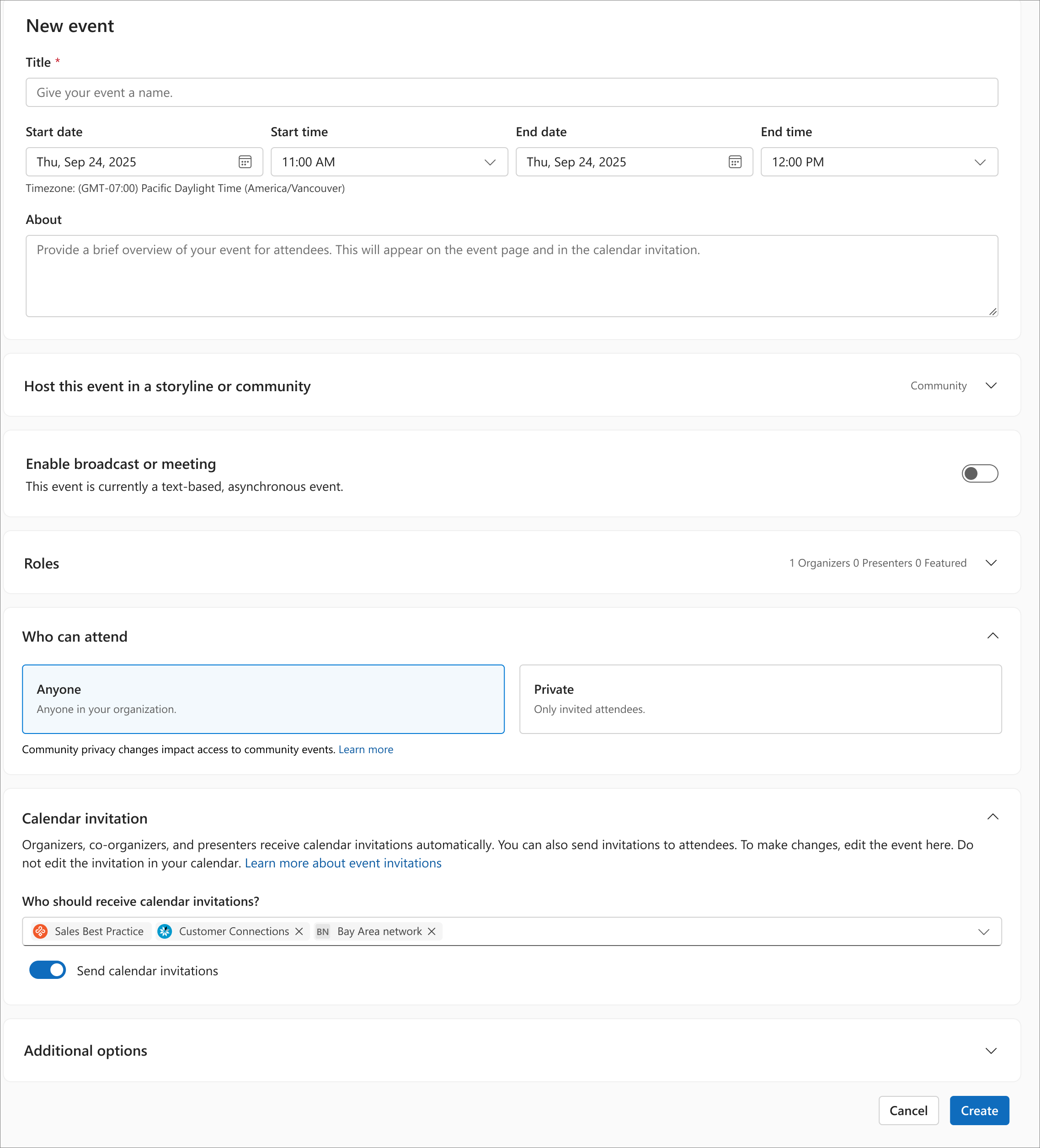
- In Calendar invitation, review or add the recipients.
- Turn on Send calendar invitations.
- Save or publish the event.
Send calendar invitations is off by default. You can create the event without sending attendee invitations and turn the setting on later by editing the event.
After calendar invitations have been sent, the setting remains on and can't be turned off.
If your community needs to be enabled
Note
Existing communities must be enabled before members can receive calendar invitations. If Viva Engage indicates that a community needs to be enabled, contact a community admin. After the community is enabled, wait 24 hours before sending calendar invitations.
For information about enabling communities and configuring calendar invitation delivery, see Send calendar invites for Engage events.
Update an event after sending invitations
After attendee invitations have been sent, you can edit the event and its recipients.
| If you... | Viva Engage... |
|---|---|
| Add recipients | Sends invitations to the new recipients. |
| Remove recipients | Sends cancellations to the removed recipients. |
| Change the event date, time, or other details | Updates the existing calendar invitation. |
| Delete the event | Sends a cancellation. |
When you update an event, Viva Engage updates the existing calendar entry rather than creating a duplicate.