

If you want to stop syncing OneDrive on your computer because you are on a metered or slow internet connection, you can pause and resume your sync.
Pausing and resuming can also help if OneDrive status displays "Processing changes" for a long time.
Pause OneDrive sync
Right-click (or CTRL-click in Mac) the OneDrive icon on the taskbar (or menubar).
Choose how long you wish to pause for: 2, 8, or 24 hours and check that the white or blue OneDrive cloud icons in the notification area shows Paused.

Note
- If you don't see the OneDrive cloud on your taskbar or menubar, read I can't see any OneDrive icons.
- OneDrive will automatically pause when your PC enters battery saver mode or you are connected to a metered network.
- If you have both OneDrive and OneDrive for Business, you can pause and resume them independently.
Resume OneDrive sync
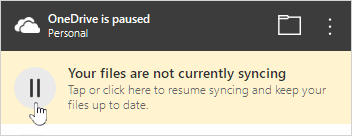
Syncing will resume automatically after the pause time has finished, or you can manually resume syncing at any time.
- Select the paused OneDrive icon in the notification/menu area:
- In the activity center, select
 or the yellow box to get going again:
Learn more
Turn off, disable, or uninstall OneDrive
How to cancel or stop sync in OneDrive
OneDrive is stuck on Processing changes
Need more help?
Account support. For help with your Microsoft account and subscriptions, visit Account & Billing Help.
Technical support. For technical support, select Contact Microsoft Support below, enter your problem and select Get Help.
Mobile users can contact Support by opening the OneDrive app and gently shaking your device.
Community support. Communities help you ask questions, give feedback, and hear from experts with rich knowledge. Ask the Microsoft Community. Do not disclose personal or sensitive information in public forums.